
Choose how many variations appear on each editor page
Use Variations per page to choose how many variations WooCommerce loads at once in Product data → Variations. This setting helps store managers balance fewer page changes against a smaller, faster editing form.
It requires WooCommerce and applies to the classic product editor on the current site. It does not change storefront pagination, the number of variations a product can have, or the separate WooCommerce product editor built with blocks.
Set a page size
- Open Settings → POM Tweaks → E-Commerce → Advanced.
- Enable Variations per page.
- Enter a positive whole number in Variations per page.
- Click Save and reload the product editor.
- Edit a variable product and open Product data → Variations.
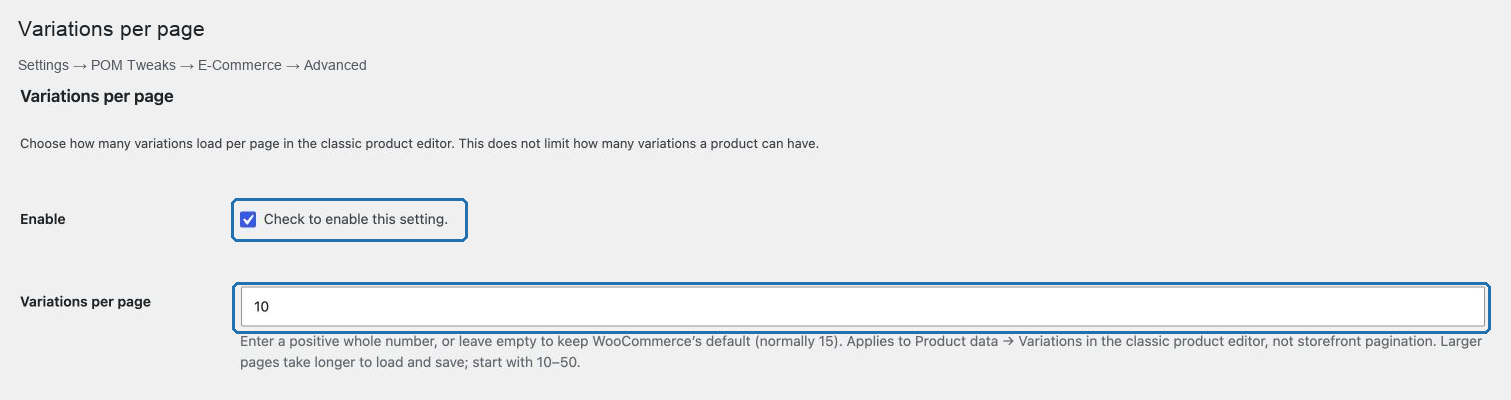
Start with 10–50. Larger pages load more editing fields and can take longer to load and save. The setting does not increase your server’s form-input or request limits.
Leave the field empty to keep the value supplied by WooCommerce and other extensions, normally 15. Zero, negative, fractional or invalid values also leave that value unchanged.
Verify the result
Use a product with more variations than your chosen page size. The first page should show that many variations, and the next page should load the remaining entries through WooCommerce’s normal AJAX controls. For example, five variations with a page size of three produce pages of three and two.
If the count has not changed, save the setting and reload the editor. Confirm that you are using the classic Product data → Variations panel and that another extension does not override pagination. If saving large pages becomes slow or incomplete, reduce the page size.
To restore normal pagination, clear the field or disable the setting and click Save. No variations are deleted or modified.