
Add content around a product
Use Product content hooks to show shared notices, product metadata or shortcodes at eleven native WooCommerce product positions. This is intended for store administrators who can edit HTML. WooCommerce must be active and the product template must execute the selected hook; POM Theme supports these classic positions.
Configure the content
- Open Settings → POM Tweaks → E-Commerce → Products.
- Enable Product content hooks.
- Add trusted HTML or an existing shortcode to the desired position. Leave other editors empty.
- Click Save and open a product that uses that position.
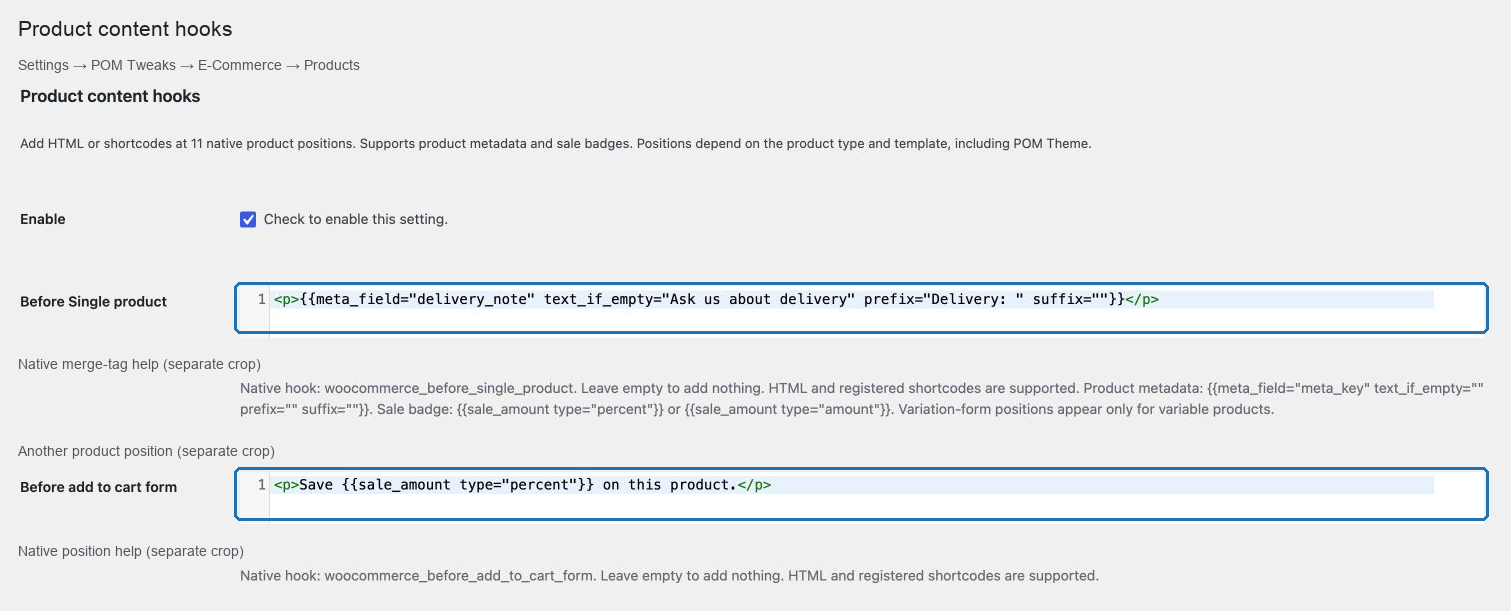
Content is shared across products. The product-specific tags below obtain their values from the product being rendered. This setting does not change product descriptions, prices or stock.
Product tags
Insert a product custom field with:
<p>{{meta_field="delivery_note" text_if_empty="Ask us about delivery" prefix="Delivery: " suffix=""}}</p>meta_field identifies the product metadata key. prefix and suffix appear only when the value is present. text_if_empty appears when it is absent, empty or not a scalar value. A value of 0 is displayed. Safe HTML formatting in a metadata value is retained; script elements are removed.
For sale products, these tags show a negative percentage or a formatted monetary saving:
{{sale_amount type="percent"}}
{{sale_amount type="amount"}}
For example, a regular price of 20 and sale price of 15 produce -25% and a saving of 5 in the shop currency. The badge uses the tweak-on-sale CSS class. No badge appears without a valid active sale and a positive regular price. A variable product must expose a valid regular/sale pair for its current context; these tags do not select a variation or update dynamically when its selection changes.
Registered WordPress shortcodes also work. Avoid embedding the entire product page into one of its own hooks. Re-entrant rendering is suppressed to prevent recursive output. With Polylang, the HTML editors are available for string translation; preserve the tags and shortcode names in translations. Existing translatable merge tags remain supported.
Available positions
| Editor | Native action |
|---|---|
| Before Single product | woocommerce_before_single_product |
| Before Single product summary | woocommerce_before_single_product_summary |
| Before add to cart form | woocommerce_before_add_to_cart_form |
| Before variation form | woocommerce_before_variations_form |
| After add to cart button | woocommerce_after_add_to_cart_button |
| After variations form | woocommerce_after_variations_form |
| Product meta start | woocommerce_product_meta_start |
| Product meta end | woocommerce_product_meta_end |
| Share | woocommerce_share |
| After single product summary | woocommerce_after_single_product_summary |
| After single product | woocommerce_after_single_product |
All fragments run at priority 15. Actual availability depends on the current template and customer flow. Variation-form positions require a variable product. A theme or block template that omits a PHP action cannot show its fragment.
Verify and disable
Check the intended position on the storefront, then leave that editor empty and save: its content should disappear. Disable the module and save to stop all its insertions while retaining the configured content.
If content is missing, confirm the module is enabled, the editor is populated, the shortcode exists and the current template executes the selected action. If HTML appears in the wrong location, check the surrounding table or block markup. Clear any relevant page cache after changing cached content.
Related: Add content around the checkout and Browse modern tweaks.