
Add content around the checkout
Use Checkout content hooks to show notices, instructions or registered shortcode output at 22 native WooCommerce checkout positions. It is intended for store administrators who can edit HTML. WooCommerce and the classic checkout are required; this includes POM Theme checkout layouts.
The Checkout block does not execute these template hooks. Adding content here does not add block slots or replace the checkout page.
Configure the content
- Open Settings → POM Tweaks → E-Commerce → Cart & checkout.
- Enable Checkout content hooks.
- Enter trusted HTML or a registered shortcode in the required editor. Leave unused positions empty.
- Click Save.
- Add a product to a staging cart and open checkout. On a step-based checkout, visit the step that contains your chosen position.
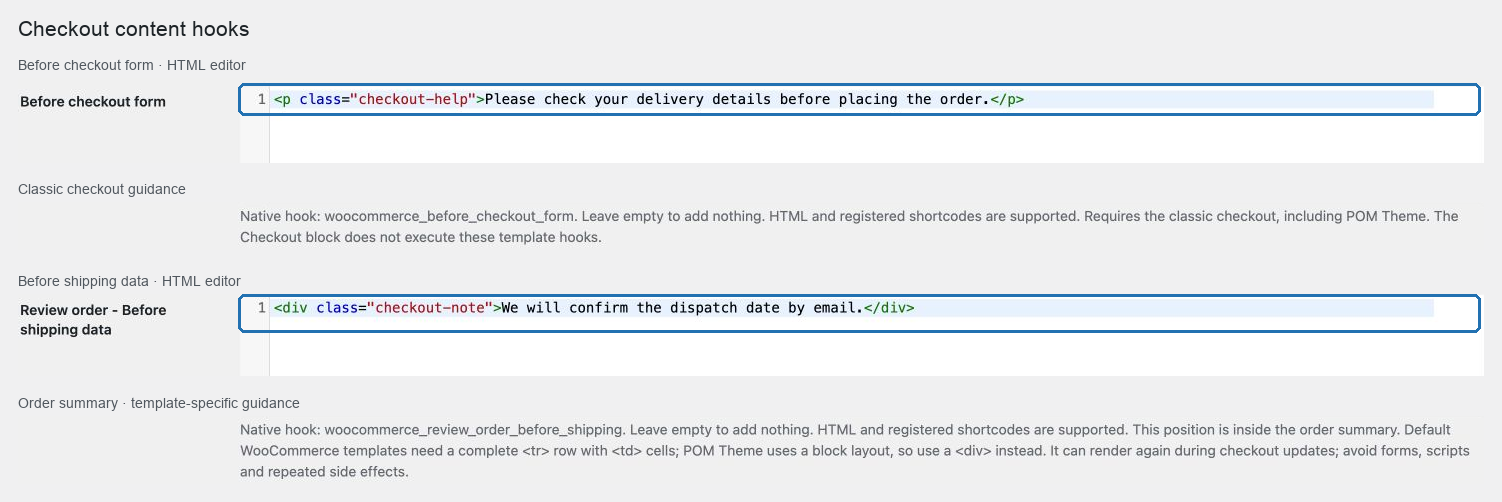
For example, Before checkout form can contain:
<p class="checkout-help">Please check your delivery details before placing the order.</p>With Polylang, these HTML editors are available for string translation. Product metadata and sale tags belong to Product content hooks and are not evaluated here.
Match the surrounding markup
The cart contents, shipping and order-total positions run inside the order summary. Standard WooCommerce templates use a table and need a complete row:
<tr><td>Delivery note</td><td>We will confirm the dispatch date by email.</td></tr>POM Theme uses a block layout for this summary. Use a block instead:
<div class="checkout-note">We will confirm the dispatch date by email.</div>The setting renders your fragment as written. It does not add or convert wrappers. Do not nest another checkout form inside the existing form.
Order-summary fragments can render again when WooCommerce updates checkout through AJAX. Use shortcodes that display content without creating orders, sending messages or other repeated side effects. Do not depend on an inline script running once. Some native positions outside the refreshed fragments run only on the initial page render.
Available positions
| Editor | Native action |
|---|---|
| Before checkout form | woocommerce_before_checkout_form |
| Before customer details | woocommerce_checkout_before_customer_details |
| Before billing form | woocommerce_before_checkout_billing_form |
| After billing form | woocommerce_after_checkout_billing_form |
| Before shipping form | woocommerce_before_checkout_shipping_form |
| After shipping form | woocommerce_after_checkout_shipping_form |
| Before order notes | woocommerce_before_order_notes |
| After order notes | woocommerce_after_order_notes |
| After customer details | woocommerce_checkout_after_customer_details |
| Before order review | woocommerce_checkout_before_order_review |
| Review order - Before cart contents | woocommerce_review_order_before_cart_contents |
| Review order - After cart contents | woocommerce_review_order_after_cart_contents |
| Review order - Before shipping data | woocommerce_review_order_before_shipping |
| Review order - After shipping data | woocommerce_review_order_after_shipping |
| Review order - Before order total | woocommerce_review_order_before_order_total |
| Review order - After order total | woocommerce_review_order_after_order_total |
| Review order - Before payment | woocommerce_review_order_before_payment |
| Review order - Before submit | woocommerce_review_order_before_submit |
| Review order - After submit | woocommerce_review_order_after_submit |
| Review order - After payment | woocommerce_review_order_after_payment |
| After order review | woocommerce_checkout_after_order_review |
| After checkout form | woocommerce_after_checkout_form |
All fragments run at priority 15. Actual availability depends on the current template and customer flow. Shipping-form and shipping-summary positions require the relevant shipping flow. A virtual-only cart does not show shipping controls. Themes may move the same native action into another checkout step.
Verify and disable
Check the intended position on the storefront, then leave that editor empty and save: its content should disappear. Disable the module and save to stop all its insertions while retaining the configured content.
Also change a billing address or shipping selection to refresh the summary. The fragment should remain in the correct location without accumulating duplicate copies. No order needs to be placed to verify display.
If content is missing, confirm the module is enabled, the editor is populated, the shortcode exists and the current template executes the selected action. If HTML appears in the wrong location, check the surrounding table or block markup. Clear any relevant page cache after changing cached content.
Related: Add content around the product and Browse modern tweaks.