
Create groups and reusable choices
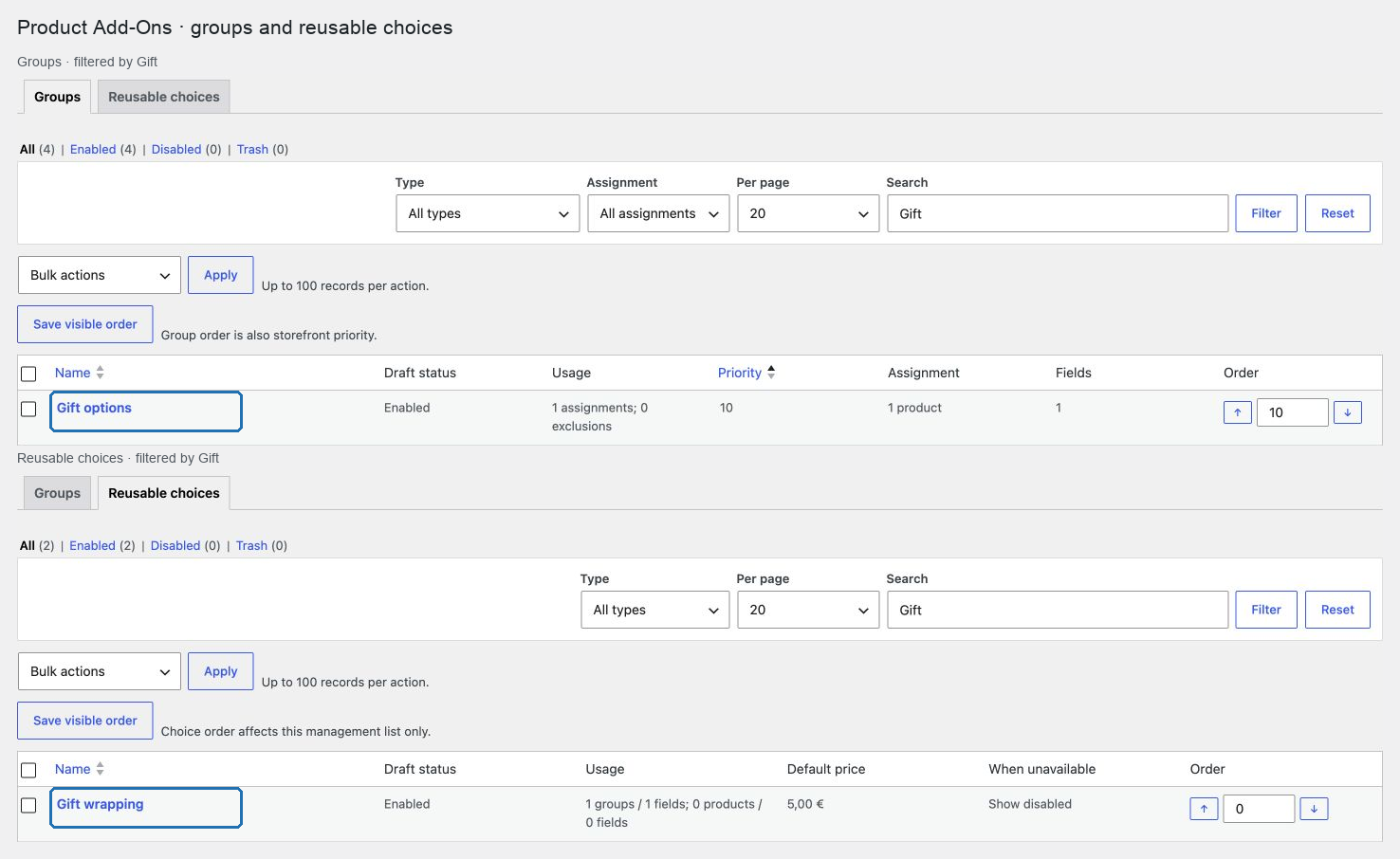
Use groups for sets of customer-facing fields that can be assigned together. Use reusable choices for options that must be shared across several fields or groups and centrally enabled or disabled.
Prerequisites
- Enable the Product Add-Ons module in POM Tweaks.
- Decide whether the group belongs on all products or should match selected products, product types, categories, tags, attributes, or other WooCommerce product taxonomies.
- Prepare option labels, prices, images, and any accepted upload extensions.
Create a reusable choice
- Go to Products → Product Add-Ons.
- Open the Reusable choices tab and select Add reusable choice.
- Enter its customer-facing name.
- Optionally add a description, image, default price, and price type.
- Choose what fields should do when this choice is unavailable: Hide it from every group removes it from the product form; Keep it visible but disabled keeps the option visible but prevents selection.
- Leave Enable this reusable choice selected and select Create draft.
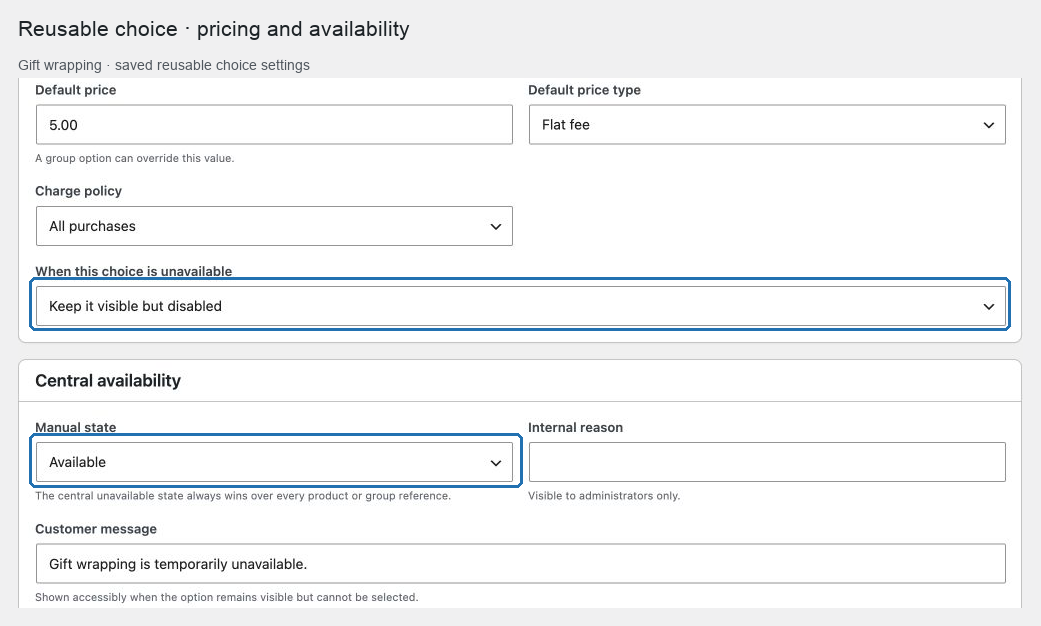
The same choice can now be linked from options in multiple groups. Saving changes updates its draft. Publish that draft after reviewing its impact to update every linked field together.
For store-time date ranges, weekly schedules, manual central stops, and optional capacity shared across products, see Manage reusable-choice availability and shared capacity.
The Usage column reports how many global-group fields and product-specific fields currently link to each reusable choice. Disabling a choice does not remove those links. Each linked option continues to use the configured Hide it from every group or Keep it visible but disabled behavior until the choice is enabled again.
Create and assign a group
- Open Products → Product Add-Ons → Groups and select Add group.
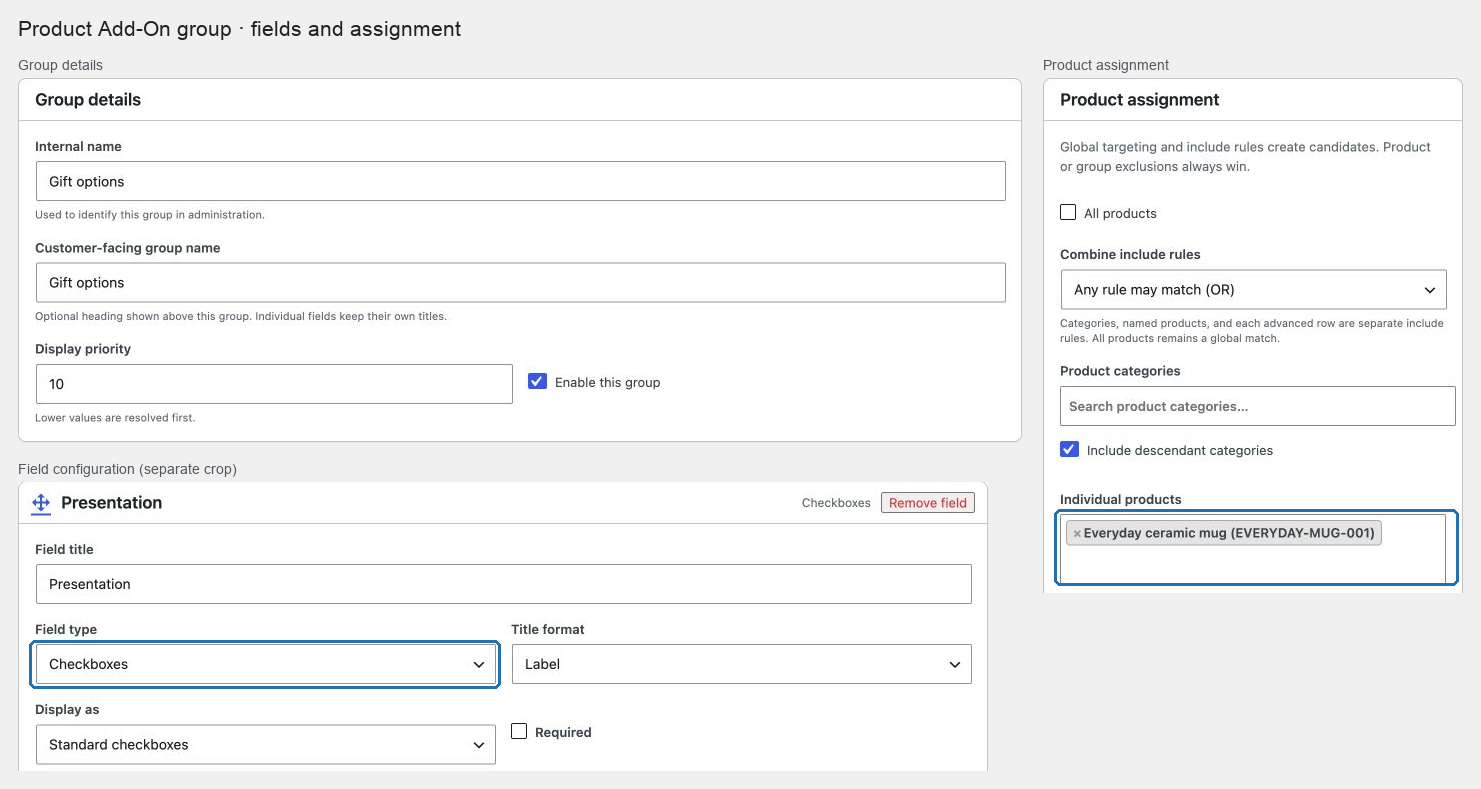
- Enter an administration name and, if needed, a different public group name.
- Set a priority. Lower priorities appear before higher priorities when several global groups match a product.
- Choose one or more assignment scopes:
- All products applies the group throughout the catalog.
- Categories apply it to selected product categories, with the configured child-category behavior.
- Products apply it only to selected products.
- Under Additional include rules, select Add include rule to target product types, tags, attributes, or another available WooCommerce product taxonomy. Values within one rule are alternatives. Under Combine include rules, choose Any rule may match (OR) or All rules must match (AND).
- Under Exclusion rules, add products, product types, or taxonomy terms that must never receive the group. Exclusions always take precedence over inclusions.
- Under Explain assignment for a product, select a product and choose Explain match to review the exact matching and exclusion reasons before saving.
- Add fields and drag them into the required order.
- For multiple-choice or checkbox fields, add local options or link existing reusable choices.
- Configure each field's required state, display, default, description, restrictions, and pricing as needed.
- Leave Enable this group selected and select Create draft.
- Review Publication, inspect the listed changes and impact, then select Publish draft.
For complete worked examples, follow Create a Gift wrapping add-on and Configure Product Add-Ons for a variable product.
Configure optional storefront presentation
The default layout remains an always-expanded form with ordinary selects, radio buttons, and checkboxes. Enable visual presentation only where it helps the product:
- Under Optional storefront presentation, choose Always expanded, Collapsible group, or Step in guided flow.
- For a collapsible group, select Start this collapsible group closed only when customers do not need to see it immediately.
- Select Show a compact selection summary to list current values and the calculated options delta. Keep the summary visible on wider screens adds a sticky summary only when the product-form container has enough room.
- In a multiple-choice or checkbox field, choose Text swatches, Color swatches, or Image swatches under Display as.
- For a color swatch, enter a six-digit hexadecimal Swatch color on each option. For an image swatch, select an image and add Image alternative text only when the image communicates information not already present in the visible option label.
Reusable choices can provide a default image, image alternative text, and color. A linked field option may override those visual values for that one reference. The option UUID, selected input value, price, and server validation do not change.
Collapsible groups use the browser's native disclosure control. Step groups are all expanded in the original HTML and become one-at-a-time steps only after the lightweight visual script initializes. If JavaScript or the optional stylesheet is unavailable, every real input remains visible and usable. A validation error automatically opens and activates the group containing the invalid control.
Assignment precedence
POM Tweaks applies group assignment in this order:
| Priority | Condition | Result |
|---|---|---|
| 1 | The product selects Exclude every global Product Add-On group | No global group applies. |
| 2 | The product lists this group under Excluded groups | This group does not apply. |
| 3 | The group's exclusion rules match | The group does not apply. |
| 4 | All products is selected | The group applies. Additional include rules are informational in this mode, but exclusions still win. |
| 5 | The legacy category or named-product targets and the additional include rules satisfy the selected any/all relation | The group applies. |
| 6 | The group has no matching include target | The group is unassigned for that product. |
Each rule row uses OR between its selected values. Any rule may match (OR) and All rules must match (AND) combine the include rows; exclusions use Any rule excludes (OR) and All rules must match to exclude (AND). Category and other hierarchical taxonomy rules can include descendants. A variation inherits the parent product's terms and product type; assignment rules cannot create a variation-only override.
The rule selector exposes only product taxonomies currently registered by WooCommerce or an active extension. If an extension later removes a taxonomy, its saved rule remains visible for diagnosis but safely stops matching. Product and term searches are paginated, so opening the editor does not load the full catalog.
When WooCommerce Bookings is active, each field also offers Bookings: Multiply cost by person count and Bookings: Multiply cost by block or night count. These settings can be combined. They affect quantity-based and percentage-based prices on booking products; flat fees remain one-time charges. The controls are hidden while Bookings is inactive, but saved settings are preserved.
Add fields to one product
Use product-specific fields when a configuration belongs to one product and should not be maintained as a reusable global group.
- Go to Products → All Products and edit the product.
- In Product data, open the Add-Ons tab.
- Optionally enter a Section name to show above these product-specific fields.
- Select Exclude every global Product Add-On group from this product when the product should use only its own fields.
- When only some assigned groups should be omitted, choose them under Excluded groups instead.
- Select Add field, configure its options and pricing, and repeat for every field required by the product.
- Drag the field cards into the intended storefront order.
- Select Update once to save the draft, reopen Product data → Add-Ons, select Publish the previously saved draft when the product is updated, and select Update again.
Product-specific fields appear after the assigned global groups and apply to every variation of a variable product. They use the same field types, reusable choices, validation, translation strings, pricing rules, cart persistence, and API output as global fields.
Format descriptions and price breakdowns
Field descriptions and reusable-choice descriptions have Visual and Code editor tabs. For a field, enable Add description first. Use the toolbar for bold, italic, lists, and links, or paste basic HTML into Code.
To add a price breakdown:
- Open the field description's Visual tab.
- Select Insert table.
- Enter the number of body rows (1–50) and columns (1–10). Keep Include a header row selected when the first row names the columns.
- Fill the cells with the agreed concepts and amounts. Use Code to adjust the table structure, add a caption, or use row and column spans.
- Save the configuration draft, reopen it to check the formatting, and follow the normal publication steps when ready.
Tables explain the price; their cell contents never set or calculate the amount charged. Configure the field's actual pricing separately. A Customer defined price field accepts the amount entered in the product form; for a subscription, verify whether that amount is charged on each payment or only on the initial payment under its charge policy.
Descriptions allow paragraphs, line breaks, bold, italic, underline, strikethrough, ordered and unordered lists, links, and basic tables with captions and header/body/footer sections. Links accept HTTP, HTTPS, email, and telephone destinations. Table cells support row/column spans and header scope. Custom styles, classes, IDs, event handlers, scripts, embedded media, images, and forms are removed. This applies to saved, imported, translated, and storefront descriptions, including existing content when displayed. Use the dedicated image controls for option images.
Descriptions remain shop-authored content. The same server-side filter applies regardless of the author's permission to edit HTML, and existing text remains editable if the visual editor is unavailable. Customer-entered formatting is a separate option described below.
Let customers enter formatted text
Enable a rich text editor when customers need to enter a project brief, a list of requirements, or a table in the product form.
- Open a group or the product's Product data → Add-Ons tab.
- Add or edit a Long text field and select Rich text editor.
- Set the customer-facing label and, if needed, a description explaining what to enter.
- Configure Required and the minimum and maximum lengths. These lengths count readable text, including line breaks, rather than HTML tags. Formatting without readable text does not satisfy a required field.
- Save and publish the configuration using the normal group or product publication steps.
- Open the product page and enter a paragraph, list, link, and table. Add the product to the cart, then reopen its configuration to confirm that the formatting remains editable.
The customer editor has Visual and Code tabs and an Insert table button with the same basic formatting vocabulary as descriptions. It is available to guests and signed-in customers independently of their WordPress administration editor preference. The server removes unsupported tags, attributes, unsafe link protocols, scripts, styles, images, and embedded content even when a customer bypasses the editor. Submitted HTML also has a separate size limit; simplify its formatting if the form reports that it is too large. The field remains a usable textarea while the editor loads or if its scripts are unavailable, with the same server validation.
Plain long-text fields remain plain text until this option is selected. A table's contents are descriptive and never calculate a price. Use a separate priced field for the amount to charge. Cart and order persistence explains how the accepted formatting is retained.
Transfer configurations with JSON
Use JSON transfer to copy product-specific fields between products or move one or more groups between sites without carrying source-site database IDs.
The JSON transfer panel is placed at the bottom of the Groups screen and the product's Add-Ons tab so routine configuration remains the primary workflow.
Export product-specific fields
- Edit the source product and open Product data → Add-Ons.
- Review the fields currently visible in the editor. The export includes unsaved changes shown in this panel, so save or discard unrelated product changes first.
- Scroll below Product-specific add-ons to JSON transfer, then keep Embed referenced reusable choices selected for a self-contained package.
- Select Create JSON package.
- Use Copy to place the JSON on the clipboard or Download to save a
.jsonfile.
On the destination product, open the same panel, upload or paste the JSON, choose a UUID strategy, and select Run preflight. Review every proposed change and warning before selecting Import package. Applying the package replaces only that product's local definition. Global-group exclusions and the setting that excludes every global group are left unchanged.
Export and import groups
- Go to Products → Product Add-Ons → Groups.
- Select one or more group checkboxes.
- Scroll below the groups table to JSON transfer and keep Embed referenced reusable choices selected when the destination may not already contain those choices.
- Select Create JSON package, then copy or download it.
- On the destination site's Groups screen, upload or paste the package.
- Choose a UUID strategy and run preflight.
- Leave Enable imported groups and reusable choices clear to review new records as drafts.
- Leave Assign imported groups to all products clear unless the reviewed package should become catalog-wide. This option requires a separate confirmation.
- To preserve portable advanced rules, select Resolve and apply portable assignment rules. Review every resolved product SKU, taxonomy and term slug, and product type in preflight.
- Select Import package and confirm the operation.
Legacy direct-product and category assignments are never copied because their IDs belong to one site. Advanced rules are exported with portable identities: product SKU, taxonomy plus term slug, or product type key. They are applied only when the explicit import option is selected and every identity resolves exactly; labels are never used as identity. Imported groups remain drafts by default, and an unresolved or ambiguous target stops the complete import. Images used by fields or reusable choices are embedded in the package and created as destination-site media attachments. The complete JSON file, including encoded images, must not exceed 1 MiB. The exporter also applies the transfer limit of 16 array levels and the shared entry ceiling before returning a package, so every generated export can pass the importer's structural preflight unchanged.
Choose a UUID strategy
- Clone with new UUIDs is the recommended default. It creates independent groups, reusable choices, fields, and options with new identities.
- Preserve UUIDs and reject conflicts keeps every package UUID. Use it for a first transfer to another site; preflight stops if a group or reusable choice UUID already exists.
- Link entities by exact UUID reuses destination groups and reusable choices only when their UUIDs match exactly. Missing entities stop the import. Names and labels are never used as identity.
Every import runs the same field, option, price, media, and size validation as normal administration. Preflight performs no writes. The final operation rechecks the package and selected options, then applies all database changes together; a failure removes newly uploaded media and rolls back new records and product metadata.
Stable package envelope
POM Tweaks JSON transfer uses schema_version: 1. The public envelope contains export_type, exported_at, informational generator versions, and a payload with definitions, optional reusable_choices, and optional embedded media. The package never contains source product, category, reusable-choice post, or attachment IDs. Treat the nested definition arrays as generated data rather than a hand-authored API: edit the configuration in POM Tweaks and export it again. A future schema_version is rejected instead of being guessed or partially imported.
Configure translated products with Polylang
POM Product Add-Ons treats the product, variation, and product_cat records in Polylang's default language as canonical. Groups and reusable choices remain private, language-neutral configuration records; do not enable either post type for Polylang translation.
By default, a translated product inherits the complete Product Add-Ons configuration of its canonical product:
- Direct assignments on the canonical product also match every translation.
- Category assignments match translated categories and their translated parent hierarchy. Include descendant categories continues to control whether descendants match.
- Product-specific fields, Exclude every global Product Add-On group, and Excluded groups inherit together.
- A translated variation inherits its canonical variation settings, while the translated parent product inherits the canonical parent settings. The normal parent-then-variation layering is preserved.
To configure one translation differently:
- Edit the translated product and open Product data → Add-Ons.
- Clear Inherit Product Add-Ons from the default-language product.
- Configure its product-specific fields and exclusions, then select Update.
This creates one complete override for that translation. Empty fields, no selected exclusions, and a cleared global-exclusion checkbox are intentional override values; POM Tweaks does not copy the canonical configuration into the translation. Select Inherit Product Add-Ons from the default-language product again and update the product to remove only the translation override and resume live inheritance.
New product and taxonomy-term rule values are stored through their canonical Polylang identities. One structural rule therefore covers every translation without duplicating the group or its rule. Use the translation override only for product-local fields and product-level exclusions.
Review usage and delete safely
Groups and reusable choices are site configuration, not content owned by the administrator who created them. Removing that administrator from one site or deleting the account from a multisite network does not remove the Product Add-Ons configuration.
The management table shows stored usage before you change an entity:
- For a group, assignment references count the all-products rule, each selected category or product, and every value in an additional include or exclusion rule. Product exclusions count products that explicitly exclude that group.
- For a reusable choice, the count distinguishes fields in global groups from fields configured directly on products.
Moving a group or reusable choice to Trash is recoverable and keeps every relationship so the record can be restored. A trashed or disabled reusable choice becomes unavailable through its existing Hide it from every group or Keep it visible but disabled setting; its field links are not destroyed.
Permanent deletion is blocked while the record has any stored reference. To delete it intentionally:
- Restore the record if it is currently in Trash.
- For a group, remove its all-product, category, direct-product, additional include, and exclusion rules and remove it from every product's Excluded groups selection.
- For a reusable choice, edit each reported global or product-specific field and replace the choice or remove that option.
- Save the affected groups and products, then confirm the Usage count is zero.
- Move the record to Trash and select Delete permanently.
If the management page reports orphaned references, leave the affected configuration in place until an administrator or integration maintainer has reviewed the authenticated integrity report. The warning identifies stored links whose target group, choice, product, or category no longer exists; it does not remove or rewrite them automatically.
Manage a large catalog
The Groups and Reusable choices tabs load one bounded page at a time. Use the status links, text search, type filter, and the 20, 50, or 100 records-per-page selector to narrow the list. Groups can also be filtered by all-products, category, named-product, advanced-rule, or unassigned scope. Select a sortable column heading to switch between ascending and descending order; ties always keep a stable record-ID order.
The Usage column is calculated only for records on the current page. Group rows show assignment and product-exclusion references. Reusable-choice rows show both the number of distinct groups or products and the number of fields that reference the choice. This makes repeated use inside one group or product visible without loading every unrelated definition.
To update several records:
- Select up to 100 rows on the current page.
- Choose Enable, Disable, Duplicate, Export JSON, or Move to Trash, as available for that entity type.
- When duplicating groups, choose Keep existing references to reuse the same reusable choices, or Clone referenced choices to create draft copies with new UUIDs. Every duplicated group, field, and option receives a new UUID in either mode.
- Select Apply and review the result notice.
Bulk group export downloads a self-contained versioned JSON package with referenced reusable choices embedded. Bulk duplicates are drafts and keep their source assignments so an administrator can review them before enabling them. If any part of a deep duplicate fails, the new records are rolled back together.
Disabling a reusable choice that is still referenced opens an impact screen before its draft changes. The screen lists each affected choice and its global and product-field counts. Confirming saves availability in the draft; publish each reviewed choice to apply the existing Hide it from every group or Keep it visible but disabled behavior. No field relationship is removed. Moving a choice to Trash remains an immediate, recoverable availability action, and permanent deletion remains unavailable until every reference has been removed or replaced.
Use the number in each Order cell for precise keyboard entry, or use its up and down buttons to swap visible positions. Select Save visible order after reviewing the numbers. A group's saved order is also its storefront priority; reusable-choice order affects only the management list. Filtering does not silently renumber records outside the visible page.
Field types
- Multiple choice: one selection displayed as a list, radio buttons, or images.
- Checkbox: zero, one, or several selected options.
- Custom text and Custom textarea: customer text with optional length and content restrictions.
- File upload: one customer file, optionally restricted to configured extensions.
- Custom price: a non-negative amount entered by the customer.
- Input multiplier: a whole number that multiplies the configured add-on price.
- Heading: explanatory structure with no submitted value.
- Datepicker: a calendar date stored with the line item.
Verify the group
- Open an assigned product in a private browser window.
- Confirm the group and fields appear above Add to cart.
- Disable one linked reusable choice.
- Reload the product and confirm it is hidden or shown disabled according to that choice's setting.
- Check a product outside the assignment scope and confirm the group is absent.
- Add one field through the product's Add-Ons tab, update and publish it, and confirm it appears after its global groups.
- Exclude one assigned group on that product, update it, and confirm the other global groups and its product-specific fields remain visible.
- With Polylang active, open a translation and confirm it inherits direct, category, local-field, and exclusion configuration from the default-language product.
- Clear the inheritance option, save a different local configuration, and confirm only that translation uses the override. Re-enable inheritance and confirm it immediately follows the canonical configuration again.
- Move a linked reusable choice to Trash, restore it, and confirm its field link remains present throughout.
- Attempt to permanently delete that linked choice and confirm deletion is blocked with its usage count. Remove the field reference and confirm permanent deletion then succeeds.
- Export one product-specific definition, import it into another product after preflight, and confirm its UUIDs are cloned while prices and fields match.
- Export a group with an embedded reusable choice to another multisite site, preserve UUIDs, and confirm both records are drafts and the group is unassigned.
- Confirm preflight rejects corrupt JSON, a future schema version, a preserve-mode UUID collision, a missing link-mode UUID, and a package above 1 MiB.
- Filter each management list by status and type, search by name, change page size, and confirm the result count and pagination stay accurate.
- Reorder two visible groups by keyboard, save, and confirm their priorities and storefront order change deterministically.
- Duplicate a group once with shared reusable references and once with cloned references; confirm both groups are drafts and all newly created records use new UUIDs.
- Select a referenced reusable choice for bulk disable or Trash, confirm the impact screen reports its group and product-field usage, and cancel without changing the record.
- Submit a test customer value at the documented operational limit and one character above it; confirm the first is accepted and the second returns one localized field error without adding a partial cart line.
- If the store customizes operational limits, verify the same boundary through a classic product form and a Store API add-to-cart request.
- Create include rules for a category, tag, attribute, and product type; compare Any rule may match (OR) and All rules must match (AND), then confirm an exclusion wins in both modes.
- Match a parent category with descendants enabled, change a product's terms, and confirm the explanation and storefront update without rebuilding every group.
- Check a variation and confirm it inherits its parent product type and terms. Remove a temporary test taxonomy and confirm its saved rule reports the missing taxonomy and does not match.
- Export a group with advanced rules, import it as a draft on another site with portable rule resolution selected, and confirm every SKU, term slug, taxonomy, and type is resolved during preflight.
If a required option field has no currently available options, POM Tweaks removes that required condition instead of making the product impossible to purchase.