
Set monthly purchase allowances
Use Monthly product purchase limits to cap units of an individual product, or Monthly attribute purchase limits to share an allowance across products with the same global attribute value. The controls are independent and can be enabled together. For example, a customer might be allowed four units of a particular product and five units in total with the Collection: Summer attribute.
These limits apply to signed-in customers. Guests are unrestricted. Configure your store to require sign-in if every purchase must be associated with an account.
Limit an individual product
You need WooCommerce, permission to manage POM Tweaks and permission to edit the product.
- Open Settings → POM Tweaks → E-Commerce → Products.
- Enable Monthly product purchase limits and select Save.
- Edit the product under Products → All Products in the classic product editor.
- Open Product data → Inventory.
- Select Enable maximum per user and enter a whole number in Monthly quantity limit.
- Select Update.
All variations and separate cart lines of that product share the same allowance. An enabled product limit of 0 prevents signed-in customers from buying any units. Clear Enable maximum per user to make the product unrestricted.
Existing product limits remain available without reopening and saving every product.
Share an allowance by attribute
First create global attributes and their values under Products → Attributes, and assign them to your products. Custom text attributes, categories and tags are not part of this control.
- In Settings → POM Tweaks → E-Commerce → Products, enable Monthly attribute purchase limits and select Save.
- Under Monthly attribute allowances, select Add new.
- Search Attribute value and choose the matching attribute and value.
- Enter Units per customer per month and save.
- Add another row for each value that needs its own allowance.
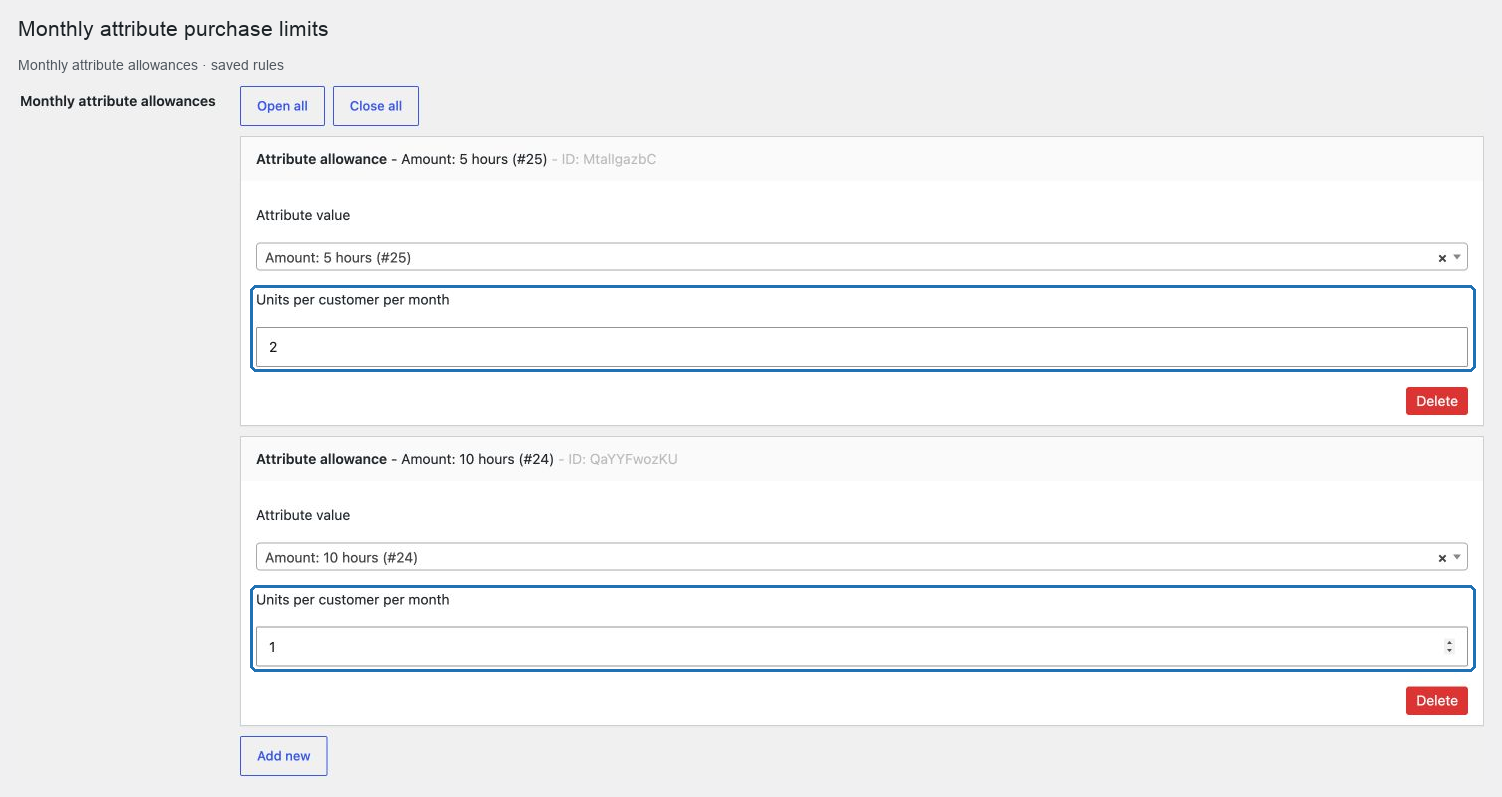
The allowance is shared by all matching products. Each restricted value has a separate cap. A product matching two restricted values consumes both allowances. A variation counts its selected global attribute values, including the customer's selected value for an “Any…” variation, rather than every possible value on the parent product.
For attribute rules, 0 or an empty quantity means unrestricted. If the same value appears more than once, the smallest positive limit applies. A zero row does not cancel another positive rule for that value. Remove obsolete rows with Delete and save.
What consumes the allowance
The calculation adds units in the cart to units in the customer's Processing and Completed orders created during the current calendar month. It uses the WordPress site timezone and resets at midnight on the first day of the next month. Reaching a cap exactly is allowed.
The calculation counts units, not the number of orders. All matching order pages are included, with support for WooCommerce high-performance order storage (HPOS) and legacy order storage. Pending, failed, cancelled, fully refunded and other statuses do not consume the allowance. Partial refunds do not subtract units while the order remains Processing or Completed.
Attribute history uses the product's current global attributes and the selected variation values saved on the order. Deleting a product or changing its attributes can therefore change its historical contribution to an attribute allowance. Product allowances continue to identify past purchases by the product ID.
Classic cart additions and updates are checked, and the full cart is checked again before checkout. WooCommerce Cart/Checkout blocks also receive allowance-aware quantity limits and final cart errors. Customers can remove items or reduce quantities to resolve an excess. Messages name the product or attribute and show the cap, purchased units and remaining allowance.
These are account purchase checks, not stock reservations. Pending orders do not reserve allowance, and simultaneous checkouts are not serialized by this feature. Existing orders are never cancelled or rewritten by enabling a limit.
Verify and troubleshoot
- Sign in as a customer with a known Processing or Completed order from this month.
- Add units up to the remaining allowance and confirm they are accepted.
- Try one additional unit. WooCommerce should explain the exceeded product or attribute cap.
- Test different variations and different products sharing the same restricted value.
- Confirm a previous-month order does not reduce the current allowance and that a guest remains unrestricted.
If a purchase appears missing from the count, check the order's customer account, creation date and current status. For attribute rules, also check that a global attribute value is selected on the product or variation. Unavailable attribute value identifies a saved value that is no longer available; replace it or remove that row.
If the history cannot be verified, checkout asks the customer to retry instead of treating the allowance as unused. To disable one policy for everyone, clear its Enable checkbox and save. Product metadata, saved rules and orders are retained.
Related: Modern tweaks, Cart product restrictions and Product REST fields.