
Design chapters and choose a layout
A chapter is one decision in a Composite product: choose a base, add accessories, select packaging, or pick a service. This guide explains how to build useful chapter sources and choose a storefront layout that fits the buying task.
Open the chapter editor
Go to Products → All Products, edit a Composite product, and open Product data → Composite chapters.
Saved chapters start collapsed so their names and order remain visible at a glance. Use the arrow control to expand a chapter, drag its move handle to change its position, or use the red Remove chapter button to delete it. Newly added chapters stay open for editing.
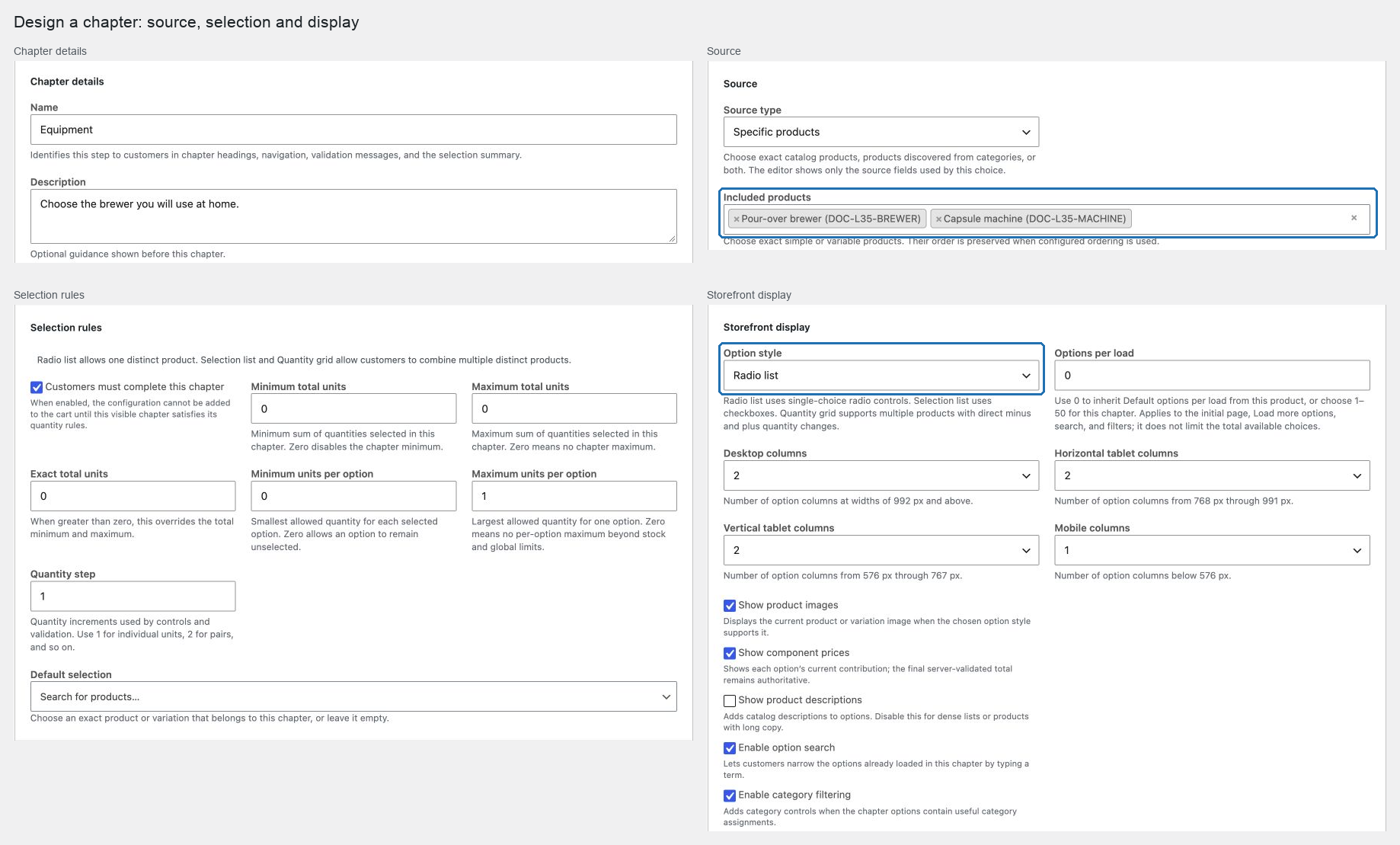
Choose a source
Each chapter supports one of three Source type values:
- Specific products keeps an exact ordered list. Use it when every permitted choice is curated.
- Product categories derives choices from one or more WooCommerce product categories.
- Products and categories combines curated products with category matches.
For category sources, choose Dynamic: update options automatically when new matching catalog products should appear without editing the Composite product. Choose Snapshot: freeze matches when saved when a campaign, quote, or regulated selection must remain stable until you save the Composite product again.
Use Excluded products for an absolute exception. Use Excluded categories to remove products contributed by the category branch. In a mixed source, a directly included product can remain available even if it belongs to an excluded category; an explicit product exclusion always removes it.
Set selection rules
The chapter's Option style determines whether customers choose one or several distinct products. Radio list allows one distinct product; Selection list and Quantity grid (−/+) allow several. Then combine the limits as needed:
- Customers must complete this chapter makes the effective chapter required.
- Minimum/Maximum/Exact total units controls all units selected in the chapter.
- Minimum/Maximum distinct products controls how many different choices are selected.
- Minimum/Maximum units per option and Quantity step control each chosen product.
- Default selection preselects one exact product or variation that belongs to the source.
An exact total takes precedence over the chapter minimum and maximum. Keep all three consistent so the product can be saved and quoted.
When Maximum units per option is 1, the storefront does not show a number field that cannot usefully change. It shows ×1 after selection instead. In a multiple-choice chapter, an optional product with a zero minimum and maximum 1 therefore behaves as a checkbox with an informative ×1; a required single-choice chapter keeps its radio behavior and also shows ×1.
Choose how options appear
Under Storefront display, choose:
- Quantity grid (−/+) for a browsable multi-product catalog where every card exposes direct quantity controls and zero means not selected;
- Radio list for a single-choice decision using radio controls; or
- Selection list for multiple choices using checkboxes.
You can independently show images, prices, and descriptions. Search and category filtering are optional discovery aids rather than requirements. For a pack-style configurator, choose Quantity grid (−/+), disable search and filters, and let customers browse the initial catalog page immediately. The storefront offers a plain Load more options link when necessary, and selections remain in the configuration while another page loads or while the customer searches or filters.
Combine Quantity grid (−/+) with Exact total units for a fixed-size pack: the counter shows selected units against the target, the minus button returns an option to zero, and the server still validates per-option and chapter limits before add to cart.
When POM Theme is active, the parent quantity and quantity-grid controls use the same compact round minus and plus controls as simple products and the cart. Other themes receive the self-contained Composite quantity controls instead.
Add a Chapter placeholder image when a chapter needs a reliable fallback for a missing or unavailable product image.
Control how many options load at once
Use these settings when a chapter contains enough products or variations to show Load more options:
- In Product data → Composite chapters → Storefront layout, set Default options per load for this product. The default is
12; allowed values are1–50. - To use a different size in one chapter, expand it and open Storefront display → Options per load. Leave
0to inherit the product setting, or enter1–50to override it. - Update the product and reload its storefront page. Check the initial choices, click Load more options, and try search and category filters if enabled. They all use the same effective page size for that chapter.
For example, set the product default to 24, use 50 for an accessories chapter, and use 6 for a chapter with detailed option cards. Existing products keep 12 until you change the setting. Return a chapter to 0 to follow its product again; a reusable chapter with 0 follows the product where it is used.
The maximum is 50 newly browsed options per load, not 50 total choices or selected units. Each purchasable variation counts as an option. Existing selections remain available separately, so they can increase the number of visible cards. More choices stay accessible through Load more options. A page can contain fewer options when catalog availability or bounded discovery work prevents filling it; continue loading while the link is available.
Lower values reduce work per request and the initial page size, especially on products with many chapters. If saving is rejected, use whole numbers within the allowed range. If a chapter ignores a changed product default, check whether it has its own non-zero Options per load value.
Set responsive option columns
Inside each chapter, open Storefront display and set its number of option columns for each POM Theme breakpoint:
- Desktop applies at 992 px and above.
- Horizontal tablet applies from 768 px through 991 px.
- Vertical tablet applies from 576 px through 767 px.
- Mobile applies below 576 px.
Each value accepts from one through six columns and affects only that chapter. The setting works with Quantity grid, Radio list, and Selection list, so one chapter can use a wide product grid while another uses a denser two- or three-column choice list. Review larger column counts with real product names, images, prices, and descriptions before publishing.
Choose the product layout
Open Storefront layout and choose the structure that best matches the number and complexity of decisions.
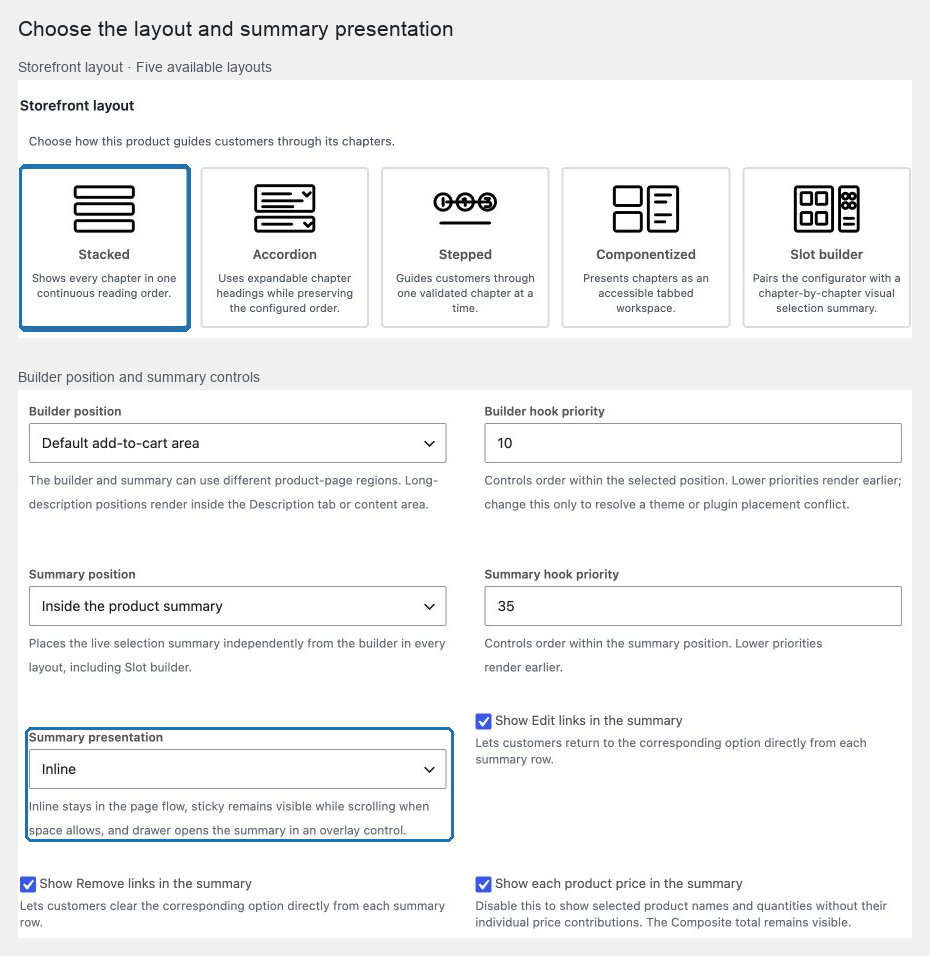
| Layout | Best fit |
|---|---|
| Stacked | Short products where seeing every chapter at once helps comparison. |
| Accordion | Medium or long configurations whose chapter titles provide useful orientation. |
| Stepped | Guided journeys where each chapter should be valid before the customer advances. |
| Componentized | Expert configurators where customers move freely between chapter tabs. |
| Slot builder | Existing visual bundle configurations that should use the same canonical summary and positioning controls as every other layout. |
All five layouts use the same saved configuration and server quote. Changing the layout does not change prices, rules, or selections.
Keyboard and small-screen behavior
- Accordion exposes expanded state and supports Up Arrow, Down Arrow, Home, and End between chapter headings.
- Stepped blocks Next when the current chapter is invalid, focuses its error, and focuses the next chapter title after a valid transition.
- Componentized uses an accessible tab list. Arrow keys follow the page direction, including RTL, while Home and End reach the first and last visible chapter.
- Every summary provides Edit and Remove links for each selected row. Edit returns focus to the corresponding option, while Remove clears it directly.
- Drawer summaries contain focus while open, close with Escape, and return focus to their trigger.
Every chapter uses its own responsive column counts. Before enhancement, the chapters remain in readable stacked order, but add to cart stays disabled because current price and availability require JavaScript validation.
Place the builder and summary
Choose Builder position and Builder hook priority independently from the summary. The available positions cover the default add-to-cart area, the areas before, inside, or after the product summary, the start or end of the long description, and the area after the complete product. The long-description positions require product description content and normally appear inside the theme's Description tab or content area. When the builder uses one of these external positions, its chapter catalog does not repeat the parent quantity. The single quantity control, Product Add-Ons, and add-to-cart button remain together in WooCommerce's normal purchase area.
For a conventional two-column product page, a useful split is:
- Set Builder position to At the start of the long description.
- Set Summary position to Inside the product summary.
- Choose Sticky when the right-hand summary should remain visible on wider screens.
- Preview the actual theme template, because WooCommerce hook columns are controlled by the active theme.
All five layouts respect Summary position and Summary presentation. Slot builder uses the same canonical summary markup as the other layouts and never creates a second slot-preview summary. If the selected theme hook is unavailable, one inline fallback appears inside the configurator.
When a compatible product-archive pop-up executes WooCommerce's Composite add-to-cart action, Default add-to-cart area renders the complete builder and purchase action inside that pop-up. POM Tweaks loads the storefront assets before the archive is displayed and keeps each Composite product's quote and component-option requests separate when several pop-ups share the page. Positions that depend on single-product summary or description hooks remain specific to templates that execute those hooks.
Use Show Edit links in the summary and Show Remove links in the summary to expose either, both, or neither action. When enabled, these actions remain plain inline links on each selected row. Disable Show each product price in the summary when the summary should show selected product names and quantities without exposing each line's contribution; the Composite total remains visible. Enable Show repeated units as separate summary rows when a quantity such as three chocolates should appear as three rows of quantity one rather than one combined row. When product prices are visible, the price shown on each expanded row is the unit contribution; the summary total remains unchanged.
After every valid quote, the main WooCommerce product price shows the price of one complete Composite configuration. Changing the parent quantity multiplies the total inside the Composite summary but does not multiply this main unit price. POM Theme's fixed bottom product bar follows the same unit price. An incomplete or invalid configuration restores the original product price until a valid quote is available again.
Choose the Summary position, Hook priority, and Summary presentation:
- Inline stays in the normal document flow.
- Sticky follows the customer within its column and returns to normal flow on narrow screens.
- Drawer opens an accessible off-canvas summary and returns focus to its trigger when closed.
If the active theme does not execute the selected summary hook, POM Tweaks displays one fallback summary inside the configurator. If a selected builder hook is absent from a customized product template, choose another builder position that the template executes.
Verify the design
Preview the product on desktop and at a narrow mobile width. Complete it with a keyboard, use search and filters, select a variation, change quantities, and submit an incomplete configuration. Confirm there is no horizontal page scroll, every requested error links to its chapter, the main product price and POM Theme fixed bar show one configuration's price, and the summary and cart show the complete quantity total. Required-field notices should remain hidden during ordinary browsing: they appear only after the customer tries to add an incomplete configuration or tries to leave an incomplete required step.
For concrete combinations of these controls, browse the Composite product use cases.