
Create your first Composite product
POM Composite Products lets a customer build one purchasable configuration from products and variations already in your WooCommerce catalog. This guide is for store owners who want to enable the tweak and publish a simple, working configurator before adding advanced pricing or conditional logic.
Before you begin
You need:
- WooCommerce and POM Tweaks active on the current site;
- permission to edit WooCommerce products;
- at least two published simple products or purchasable variations to use as choices; and
- a product page where JavaScript can run, because current price and availability are confirmed by the server before add to cart.
POM Tweaks registers its own Composite product type. It does not convert or take ownership of products created by the official WooCommerce Composite Products extension.
By default, chapter sources accept published WooCommerce Simple product and Variable product records. A variable product contributes its purchasable variations. Subscription product types are not component choices because they require a different recurring billing and cart contract; a category containing only subscriptions therefore produces no Composite options.
Enable Composite products
- Go to Settings → POM Tweaks → E-Commerce → Products.
- Enable Composite products.
- Open the tweak settings.
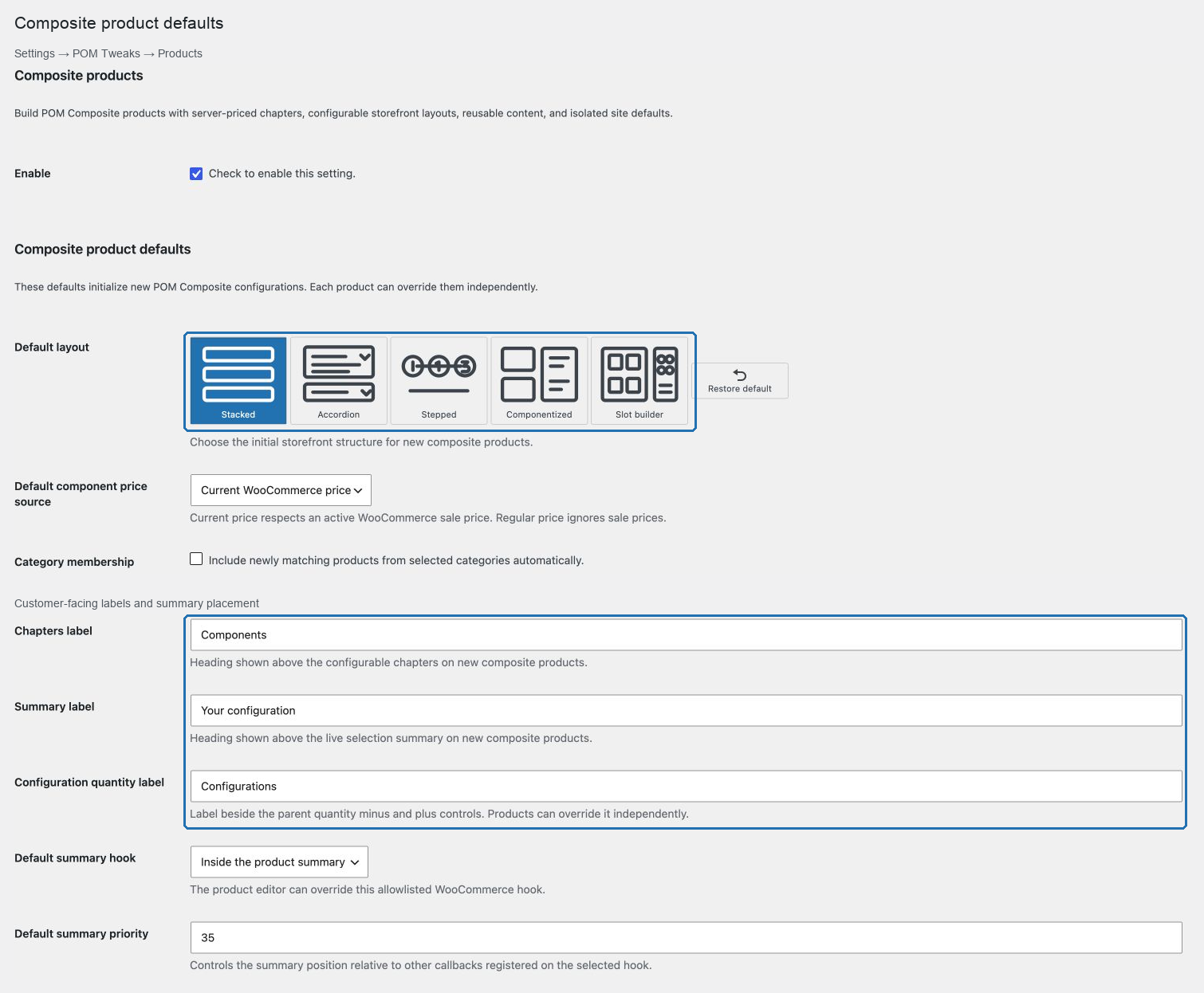
- Choose the Default layout, Default component price source, and Category membership behavior for new products.
- Set the default Chapters label, Summary label, Configuration quantity label, Default summary hook, and Default summary priority.
- Under Composite product skin, choose the accent, selected-option background, surfaces, border, muted text, error color, and corner radius. Leave the defaults in place when the active theme already supplies a suitable visual system.
- Save the settings.
These values initialize new Composite products. A product can override them later without changing products that have already been saved.
The skin deliberately does not set a font family or heading font size. Product titles and chapter or summary headings continue to use the active theme's typography. When POM Theme is active, action buttons and validation notices use its supported button and information-box presentation automatically.
The product editor places short guidance directly beneath fields whose effect is not obvious. Use those notes to distinguish zero from an unlimited value, understand pricing precedence, choose storefront controls, and place the builder and summary independently. The guidance describes the saved behavior; it does not replace server validation when fields conflict.
Create the product
- Go to Products → Add New Product.
- Enter the product name, description, image, tax status, stock settings, and any parent weight or dimensions you need. Enable WooCommerce's Virtual option when the complete parent configuration requires no shipping.
- In Product data, choose Composite product.
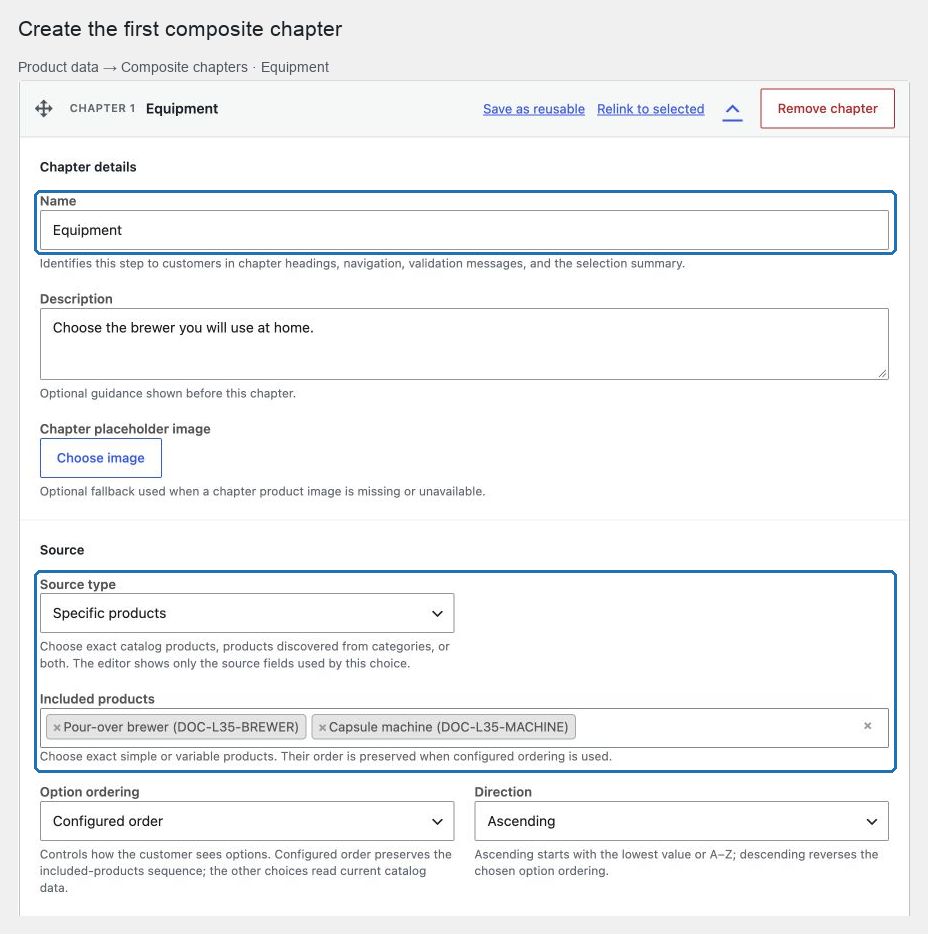
- Open Composite chapters.
- Select Add chapter.
- Enter a Name and, when helpful, a Description that tells the customer what to choose.
- Under Source, choose Specific products and add two or more published products or variations.
- Under Selection rules, enable Customers must complete this chapter.
- Under Storefront display, choose Radio list so the first test allows exactly one product. Keep images and prices visible, and choose the responsive column counts that fit the product names and images.
- Under Pricing and global limits, keep Base price plus components and Current WooCommerce price for this first product.
- Under Storefront layout, keep Stacked, Default add-to-cart area, and Inline. Change Configuration quantity label when a term such as “Boxes”, “Kits”, or “Bookings” is clearer than “Configurations”.
- Keep Builder position and Summary position separate. The first controls where customers make their choices; the second controls where the live selection and total appear.
- Keep Show Edit links in the summary and Show Remove links in the summary enabled for this first product. They can be disabled independently when the summary should be read-only or expose only one action.
- Publish or update the product.
Verify the storefront
- Open the published product in a private browser window.
- Confirm the chapter contains the products or variations you selected.
- Choose one option and wait for the total to update.
- Confirm the inline Edit and Remove links perform their corresponding actions.
- Add the configuration to the cart.
- Confirm the cart contains one parent configuration row and its component row.
- Change the parent quantity and confirm the component quantity stays synchronized.
- Continue to checkout and place a test order using a safe test payment method.
The expected result is one linked configuration whose price, stock, tax, shipping, cart, and order data are validated by WooCommerce and POM Tweaks on the server. Editing a displayed amount in the browser cannot change the charged price.
Choose the next guide
- Use Design chapters and choose a layout to add categories, multiple choices, defaults, filters, and a different presentation.
- Use Price and ship Composite products before publishing fixed-price bundles, fees, discounts, or mixed shipping.
- Use Control choices with scenarios and compatibility when one answer should reveal, require, or exclude another.
- Browse the Composite product use cases for complete configurations you can adapt.
- If the total never becomes available or the product cannot be saved, start with Troubleshoot Composite products.