
Control choices with scenarios and compatibility
Use scenarios when a selection should show, hide, require, or make another chapter optional. Use compatibility rules when one exact product or variation requires or excludes another.
To change the management fee for a complete product-and-quantity combination, use Pricing and global limits → Management fee by exact combination. These pricing rules replace the default fee when the complete selection matches and do not require a scenario. See Change the management fee for an exact combination.
Create a scenario
- Edit a Composite product, open Product data → Composite chapters, and find Scenarios below the chapter list.
- Select Add scenario and give it a name that explains its business purpose.
- Choose Match all conditions when every condition must match, or Match any condition when one is enough.
- Add one or more conditions.
- Add actions that show, hide, require, or make a chapter optional.
- Use Scenario preview to enter sample selected product or variation IDs and total units.
- Reorder scenarios or actions when precedence needs to change, then save the product.
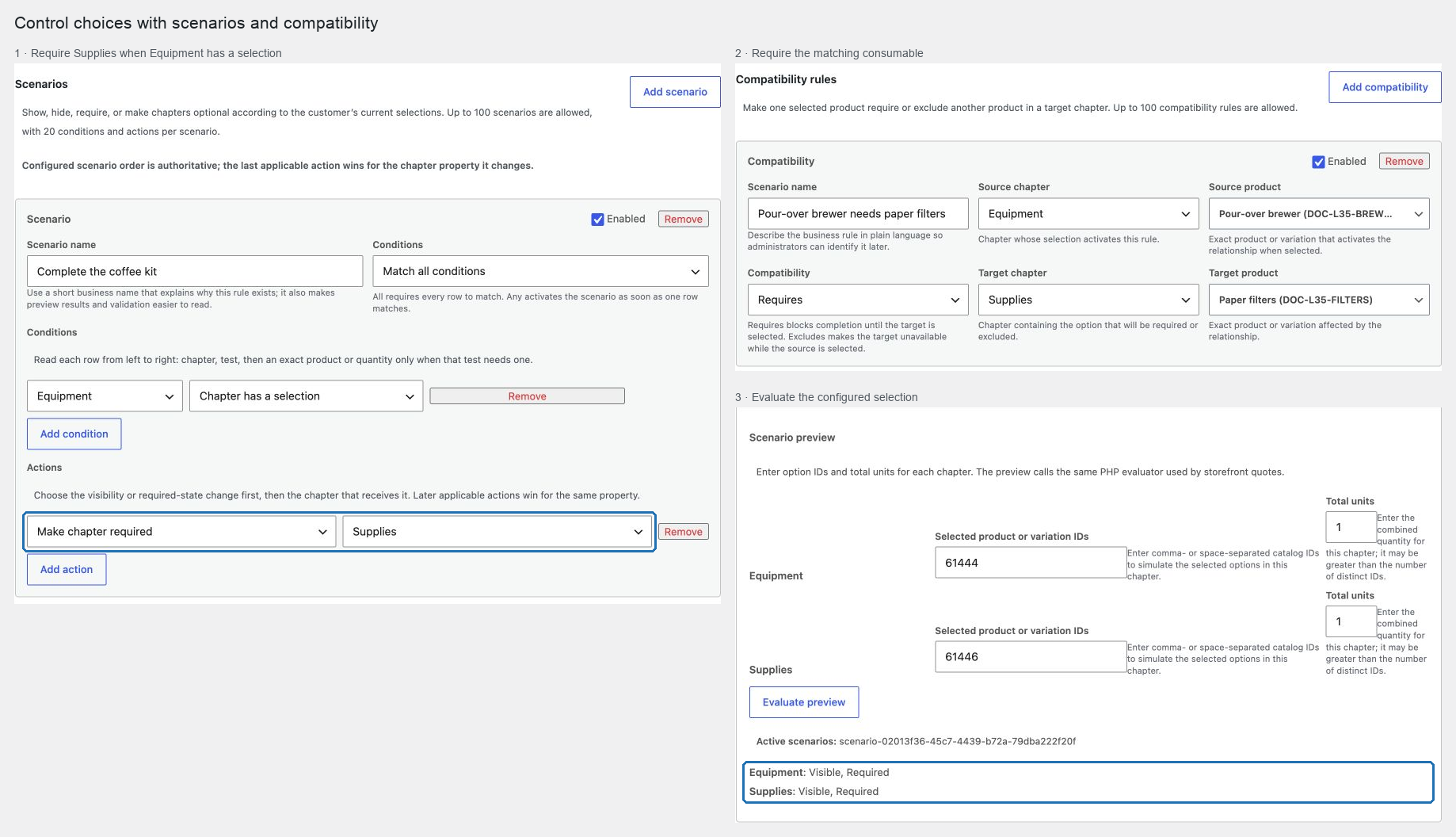
Available conditions include always, chapter has a selection, chapter is empty, an exact product is selected or not selected, and chapter has at least or at most a number of units.
The inline guidance in each scenario explains the row from left to right and distinguishes Match all conditions from Match any condition. Compatibility controls also identify the activating source and affected target, while Scenario preview explains the expected ID list and total-unit value.
Scenarios run from top to bottom. If two matching scenarios change the same property, the later action wins. Visibility and required state are separate: showing a chapter does not automatically make it required.
Add a compatibility rule
Under Compatibility rules, select an exact source product or variation and an exact target:
- Requires makes the configuration invalid until the target is also selected.
- Excludes makes the target unavailable while the source is selected and rejects a request containing both.
Rules are directional. If product A and product B must exclude each other regardless of selection order, create A excludes B and B excludes A.
Enter a clear rule name when the customer needs a tailored message. Without one, the validation message uses the current WooCommerce product names.
Avoid impossible configurations
The editor blocks configurations such as:
- a scenario reading and changing the same chapter;
- circular scenario dependencies;
- an always-hidden chapter that is still unconditionally required;
- one source both requiring and excluding the same target;
- mixed require/exclude cycles;
- default selections that exclude each other; or
- limits that cannot be reached after exclusions apply.
Warnings do not block saving, but they identify deterministic overlaps such as duplicate conditions or a later action reversing an earlier one. Use the path shown by Scenario preview to find the exact rule.
Verify the customer journey
Test every branch from a clean product-page load. Confirm hidden-chapter selections are removed, required markers update, Stepped and Componentized navigation contain only visible chapters, excluded options cannot be selected, and a manually altered request is rejected by the server.
See Build a custom computer, Build a camera kit, and Build a guided beauty routine for practical rule designs.