
Add linked products automatically
Use Force sells when a product needs an accompanying item, such as a required accessory or an editable starter supply. WooCommerce adds each linked product as a separate cart line with its own price, taxes and stock.
Enable and configure
You need WooCommerce, permission to manage POM Tweaks, and permission to edit the main product. Configure links in the classic WooCommerce product editor.
- Open Settings → POM Tweaks → E-Commerce → Promotions.
- Enable Force sells and select Save.
- Edit the main product under Products → All Products.
- Open Product data → Force sells and select Add linked product.
- Search for a simple product or a specific variation. A variation must have all its attributes specified.
- Choose the behavior, quantity and quantity basis below.
- Select Update. Open the product page and check the list below its add-to-cart button.
Existing force-sell relationships appear automatically. You do not need to open and save every product. Disabling the tweak retains the saved relationships.
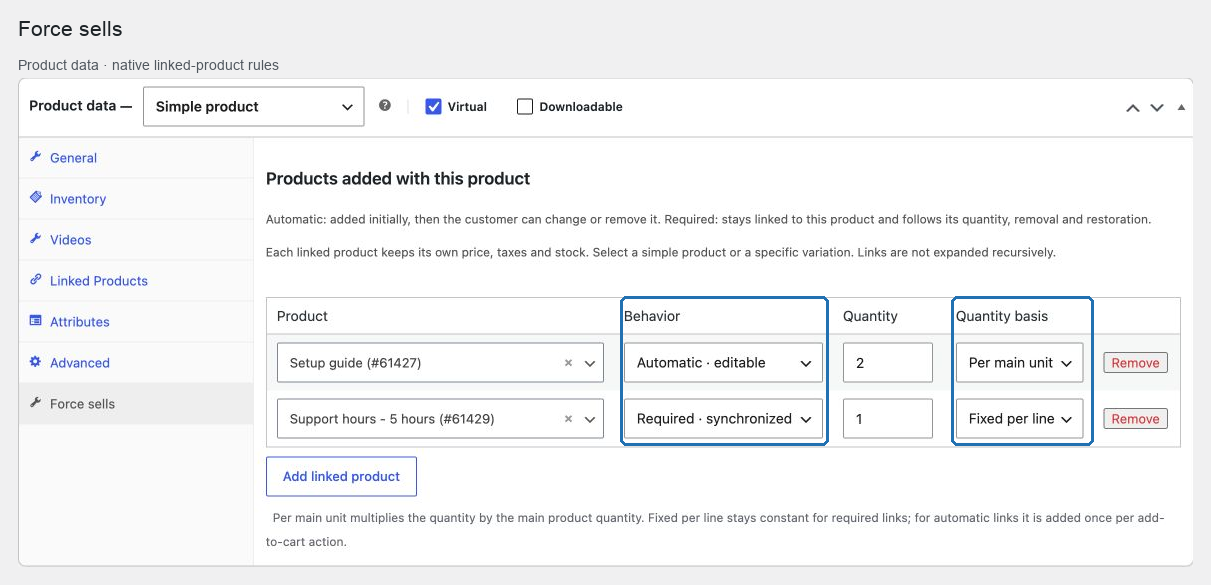
Choose the behavior
| Behavior | What the customer can do |
|---|---|
| Automatic · editable | The item is added with the main product. The customer can then change its quantity or remove it independently. |
| Required · synchronized | Its quantity follows the configured rule. Remove or restore the main product to remove or restore its required items. Its quantity and removal controls are locked. |
Changing the main quantity directly in the cart updates required links only. Adding the main product again also adds another allowance of automatic items. An independently purchased copy of a required accessory remains a separate editable line; two main products can each require their own copy.
Choose quantities
- Per main unit: multiply the linked quantity by the main quantity. For example, quantity 2 with three main units adds six accessories.
- Fixed per line: a required link stays at the configured quantity regardless of the main quantity. For automatic links, that quantity is added once per add-to-cart action.
Quantities must be positive and supported by WooCommerce and any installed quantity extensions. The default is one linked item per main unit.
New links cannot point back to the main product or its own variations. Automatically added products do not expand their own links recursively. A product that needs several accessories should list all of them directly.
WooCommerce Bookings
For booking products, People can assign a link to a person type. Its quantity is multiplied by the selected count for that type; an unselected type adds nothing.
- Multiply general links by people multiplies links marked General link by the total selected people. Person-specific links already use their own type's count.
- Multiply by booking duration also multiplies quantities by the duration supplied by WooCommerce Bookings, including person-specific links.
These multipliers also apply when the quantity basis is fixed. Existing person-specific links and multiplier selections are retained. Confirm the result with your booking's duration unit and person types before making a new rule available to customers.
Cart behavior and compatibility
Classic carts and WooCommerce Cart/Checkout blocks use the same required relationships. Required quantities are protected on the server as well as in the interface. If stock or another product validation prevents a linked addition, the main addition is cancelled and the previous cart is restored. Checkout reports unavailable required items.
Links do not create a discount or change catalog prices. All included products contribute their normal shipping, tax and stock behavior. Existing orders and order-payment pages are not retroactively expanded. The official Force Sells extension and this feature should not be enabled together.
The product-page preview requires the native woocommerce_after_add_to_cart_button hook. Custom product layouts that omit it can still add links through WooCommerce's native cart flow. New linked targets support simple products and fully specified variations; products requiring their own booking form, add-ons or other mandatory configuration need a dedicated integration.
Verify and troubleshoot
- Add two main units and compare each linked quantity with its rule.
- Change the main quantity in the cart. Required items must update; automatic items must remain editable.
- Remove and restore the main line. Its required items should follow, while automatic and independent lines remain.
- Repeat with a linked variation and the cart layout your customers use.
If an item cannot be added, check its price, stock, publication status and required configuration. Remove an unavailable target from the product editor or replace it with a purchasable target. A rejected rule save preserves the previous set: correct the reported quantity, duplicate or target before updating again.
Related: Modern tweaks, Frequently bought together and Quantity customization hook.