
Price and ship Composite products
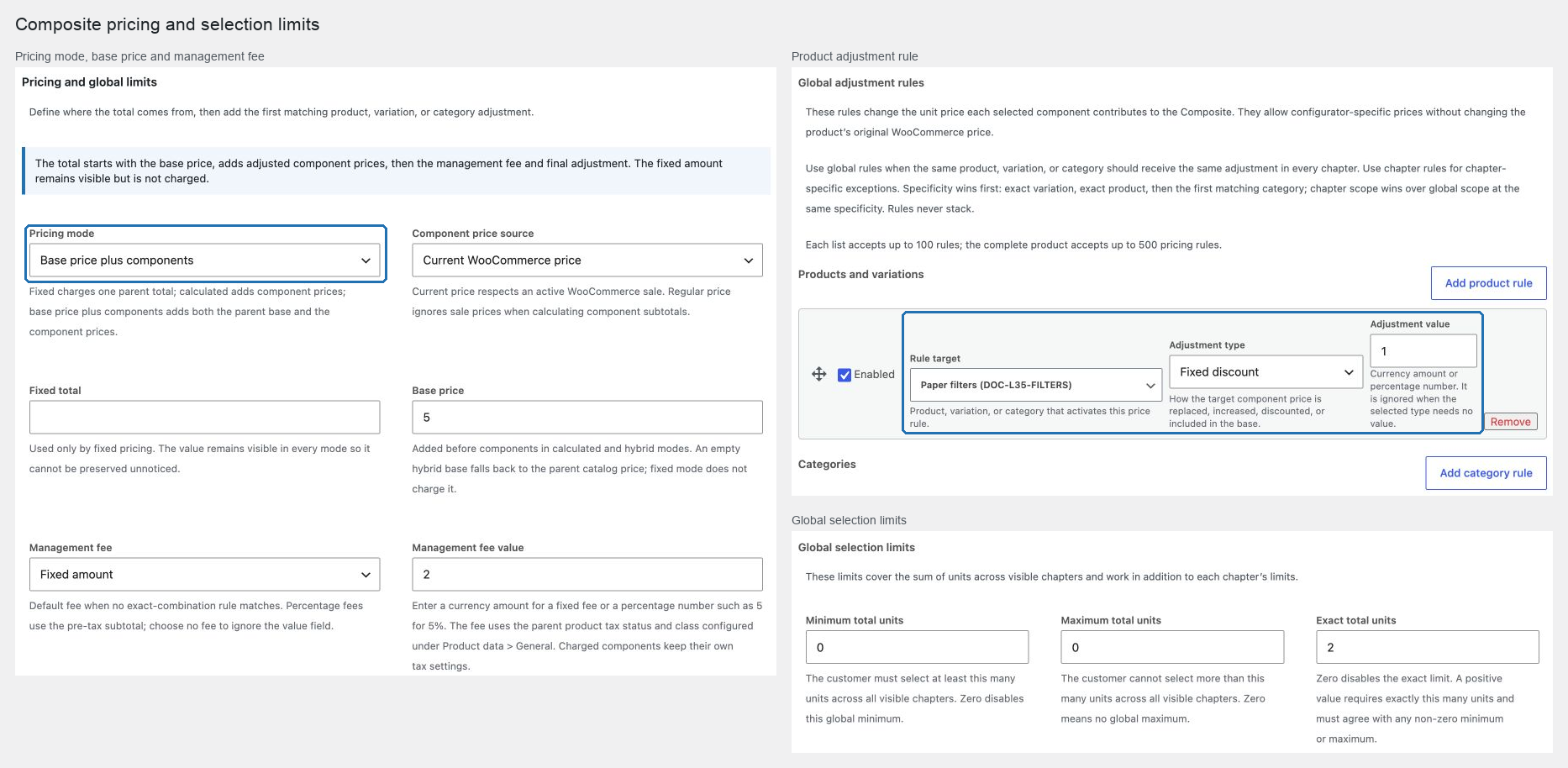
Composite pricing is calculated on the server from the saved product, selected components, WooCommerce prices, tax context, and current customer market. Configure pricing in Products → Edit product → Product data → Composite chapters → Pricing and global limits.
Choose the pricing mode
| Pricing mode | Charged total |
|---|---|
| Fixed total | The configured fixed amount. The parent owns the complete price and component lines are zero-priced. |
| Calculated from components | Optional base price + adjusted component prices + management fee + final adjustment. |
| Base price plus components | Configured base, or the parent catalog price when the base is empty, + adjusted components + fee + final adjustment. |
Choose Current WooCommerce price when active sale prices should affect components. Choose Regular WooCommerce price when component sales should be ignored.
Apply adjustments without double charging
Adjustment rules change the unit price that a selected component contributes to the Composite. They provide configurator-specific pricing without changing the product or variation's original WooCommerce catalog price.
Use Global adjustment rules when a product, variation, or category should receive the same adjustment wherever it appears in the configurator. This avoids repeating and maintaining an identical rule in several chapters. Use a chapter rule when the adjustment belongs only to that chapter. A chapter rule wins over a global rule only at the same specificity; for example, a global variation rule still wins before a chapter product rule.
The Global default component adjustment applies only when no more specific rule matches. A chapter can also define its own default and rules. Its default is considered before the global default but after every variation, product, and category rule.
Exactly one enabled adjustment wins. The order is:
- chapter exact variation;
- global exact variation;
- chapter exact product;
- global exact product;
- first matching chapter category rule;
- first matching global category rule;
- chapter default; and
- global default.
Available adjustments are no adjustment, included in the base price, a fixed component price, fixed increase, fixed discount, percentage increase, and percentage discount. Category rule order matters because the first match wins; rules never stack.
A fixed Management fee is added before tax. A percentage fee uses the pre-tax base-plus-component subtotal. The Final total adjustment is applied once after the base, components, and management fee.
Change the management fee for an exact combination
Use Management fee by exact combination under Pricing and global limits when a complete selection needs a different fee. The ordinary Management fee and Management fee value remain the defaults for every unmatched configuration.
- Choose Calculated from components or Base price plus components, and configure the default fee.
- Select Add management fee rule and enter a Rule name that identifies the combination.
- Use Add product to combination to list every product in the complete selection. For a variable product, select the exact variation. Include products from all chapters; an extra or missing product prevents a match.
- Keep Match exact quantities enabled and enter Units per configuration for each product. For example, A ×2 + B ×1 can use one fee, while A ×1 + B ×1 uses another. Units of the same product or variation selected in different chapters are added together. Buying two complete configurations does not change the matching quantities.
- Choose Replacement management fee and enter Replacement fee value. Use Fixed amount, Percentage of pre-tax subtotal, or No management fee to waive the default fee. A fixed value of zero is also valid. When country zones are available, fixed fees can have zone amounts; an empty zone inherits that rule's global amount.
- Add another rule for each other combination. Drag the move handle to set priority: the first enabled matching rule wins and replaces the default fee. Fees never stack.
- Update the product. Open its storefront, select each combination, and verify the total in the builder, cart, and checkout. Change a quantity, remove an item, and add an extra item to verify that unmatched selections return to the default.
For example, with a default fee of €8, set A ×2 + B ×1 to €3 and A ×1 + B ×1 to €5. A ×3 + B ×1 or A ×2 + B ×1 + C ×1 uses €8 unless another rule covers it. These amounts are before tax and final adjustment.
Disable Match exact quantities only when the same complete set of products should match at any quantity. Place quantity-specific rules above such a broader rule. Disable Enabled to retain a rule without applying it, or use Remove management fee rule to remove it. Disabling or removing every rule restores the ordinary default-fee behavior.
Rules compare product or variation identity and, by default, quantities. Chapter order, Product Add-On values, and the parent quantity are not additional matching conditions. Hidden chapter selections do not participate. Scenarios continue to control chapter visibility and requirements; their Scenario preview does not preview pricing. The fee follows the same parent tax settings and final adjustment as the default fee. Fixed total mode ignores both default and replacement management fees.
Each product accepts up to 100 management fee rules, with up to 200 distinct products or variations per combination. Fee rules count toward the existing 500 pricing-rule limit across the complete Composite. Empty combinations, repeated product rows, variable parents, and choices outside the configured chapter sources cannot be saved.
Set tax for the base price and management fee
The base price and management fee use the Composite parent product's tax settings. Charged components use their own product tax settings, so the parent and selected components can have different tax classes.
- Enable taxes in WooCommerce → Settings → General and configure the required rates under WooCommerce → Settings → Tax.
- Open Products → Edit product → Product data → General on the Composite product.
- Set Tax status to Taxable when the parent amount should be taxed.
- Choose the parent's Tax class and update the product. Choose Standard only if the desired rate is configured in that class; class names do not imply a fixed percentage.
- Preview the configuration, add it to the cart, and verify the tax breakdown at checkout for the customer's location.
For example, with tax-inclusive display and applicable rates of 21% for the parent and 10% for a component, a fixed pre-tax management fee of €2 displays as €2.42. A selected component priced at €10 before tax contributes €11, giving a total of €13.42 when there is no base price or adjustment.
The management fee shares the parent's tax class with its base price; it does not have a separate tax-class selector. In Fixed total mode, the parent tax settings apply to the full charged amount. If General has no tax controls, check that taxes are enabled in WooCommerce.
Use regional fixed amounts
When Country pricing zones is enabled, Composite Products adds optional zone values beside fixed totals, bases, fixed fees, and fixed adjustments. Leave a zone empty to inherit the global amount. Percentage changes remain global because they use the already regionalized subtotal.
On a shared cached product page, the parent Composite product is structural rather than a priced cart line. POM emits no regional parent, component, adjustment, or total amount in cached HTML, attributes, JSON, or inline scripts. The country-price resolver returns the complete form for the visitor's zone; the configurator then obtains an authoritative quote before enabling add to cart. Cart and checkout always quote the saved selections again on the server, so changing browser markup cannot change the charged amount.
Disabling Country pricing zones, disabling an individual zone, or making the zone configuration unavailable hides the corresponding controls but does not erase saved overrides during an unrelated Composite edit. Re-enable the tool and the relevant zone to review or clear those values deliberately. See Create a regional product bundle for a complete example.
Set global limits
Global selection limits count units across all visible chapters and operate in addition to chapter limits. Use them for rules such as “choose exactly 12 items across the whole box.” A non-zero exact total must agree with any non-zero minimum or maximum.
Choose shipping behavior
Open Storefront layout → Shipping mode.
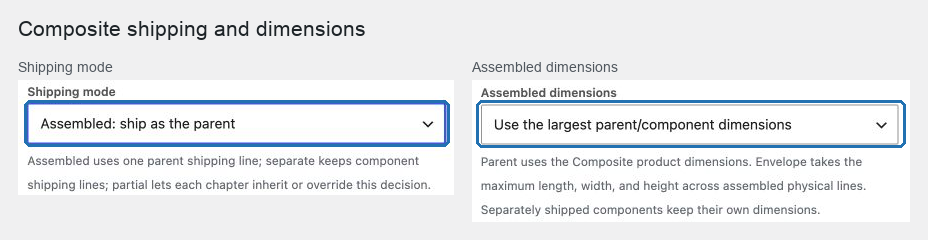
- Assembled: ship as the parent makes components non-shipping lines. Their physical weight is added to the parent parcel.
- Separate: ship each component makes the parent non-shipping and leaves physical component products as normal shippable lines.
- Partial: choose by chapter keeps the parent behavior and lets each chapter use Assembled into the parent parcel or Ship components separately. A chapter set to Inherit product mode remains separate in partial mode.
- Virtual: never ship this chapter removes that chapter from shipping even when the underlying catalog item is not marked virtual. Use it for insurance, warranties, setup, licences, and other services that may accompany a physical product.
WooCommerce's native Virtual checkbox is also available on the Composite parent. Use the parent flag when the complete configuration is digital or service-only. For a physical camera plus insurance, leave the parent physical, ship the camera chapter assembled or separately, and mark the insurance chapter Virtual: never ship this chapter.
For assembled components, Use parent dimensions preserves the parent length, width, and height. Use the largest parent/component dimensions uses the largest length, width, and height found among the parent and assembled physical components. It is a bounding envelope, not a packing-volume calculation.
Understand coupons and tax
WooCommerce calculates tax from the real parent and component line items. In calculated and base-plus-components modes, charged components keep their own product and category identity, so normal coupon inclusions and exclusions apply. In fixed mode, the entire amount sits on the parent and zero-priced components cannot create another discount.
POM Product Add-On amounts on selected components are included once in the authoritative allocation. They remain visible in the cart and order but are not charged again by a second price hook.
When the Composite parent also has POM Product Add-Ons, Options total shows only those parent Add-On amounts. Estimated total starts with the current valid Composite unit total, including its selected components, and then adds the parent Add-Ons. The cart charges the same combined amount through the linked group: the parent line holds its Add-On amount while the component lines retain their allocated amounts. Changing the Composite quantity multiplies both parts without counting either part twice.
Country pricing treats a Composite parent without a standalone catalog amount as a valid structural product. Regional cart validation therefore preserves the parent Add-On runtime amount while its selected components retain their own regional allocations.
Verify before launch
Test every pricing mode you intend to publish with the store's “prices entered with tax” setting, its customer tax display, at least two tax classes, a coupon, parent quantity greater than one, and your actual shipping method. The product total, sum of cart lines, checkout total, taxes, and order total should agree at the store currency precision.