
Build a choose-your-own gift hamper
Use this pattern when customers choose a container and fill it with a fixed number of food, drink, or gift products. It suits store owners who want the catalog to supply current prices and stock while the assembled hamper ships as one parcel.
Prerequisites
- Create a WooCommerce category for every useful filter, such as Savoury, Sweet, and Drinks.
- Publish the container products and every selectable item with accurate price, stock, weight, and dimensions.
- Decide how many item units the hamper must contain.
Configure the hamper
- Go to Products → Add New Product, choose Composite product, and open Composite chapters.
- Add a required chapter named Choose your hamper. Use Specific products and Radio list for the single container choice.
- Add a required chapter named Choose the contents. Use Product categories, select the item categories, and choose Dynamic: update options automatically.
- Set Exact total units to the hamper capacity, for example
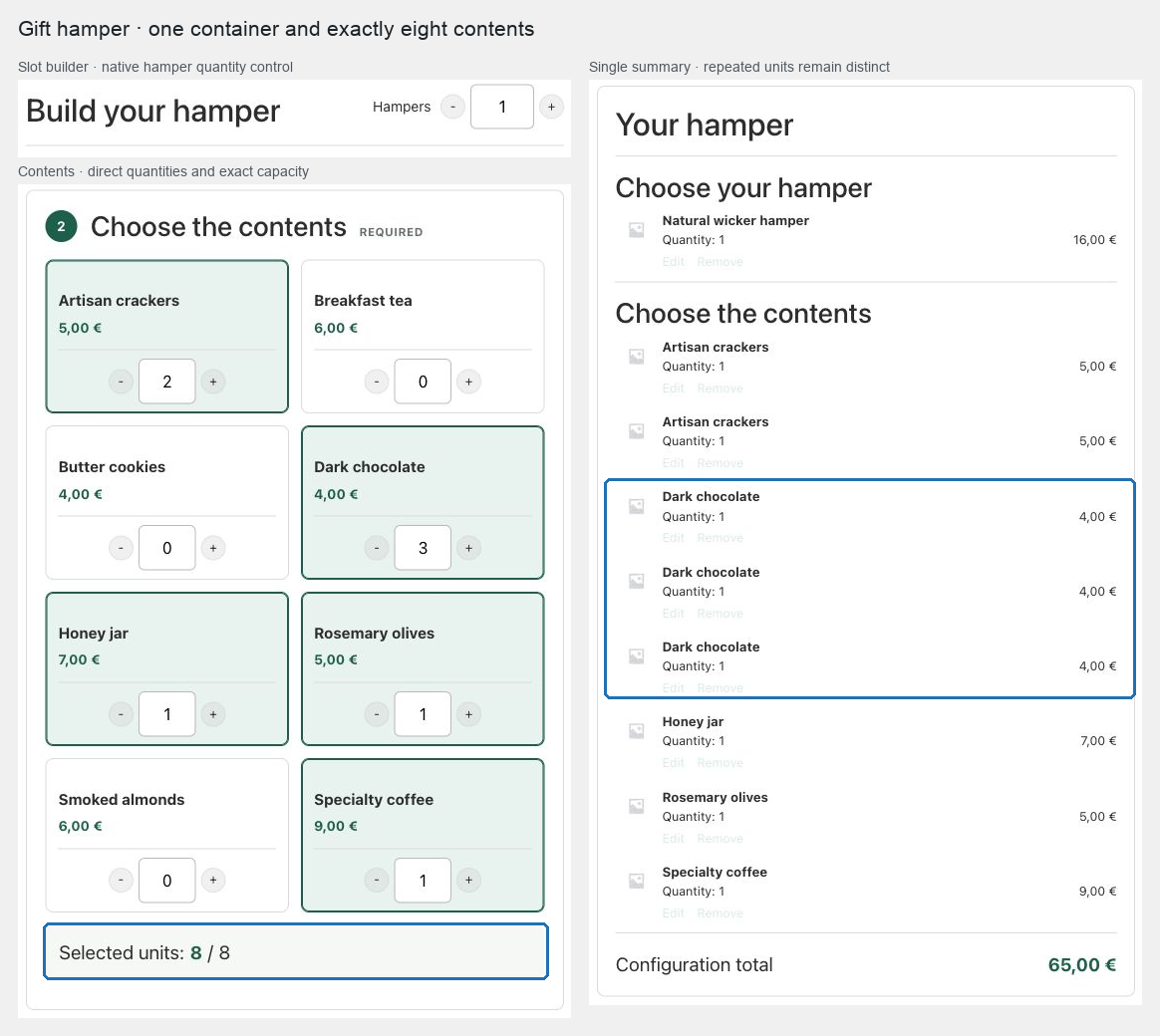
8. Set Minimum units per option to1and a sensible Maximum units per option to prevent one item filling the whole hamper when that is not wanted. - Choose Quantity grid (−/+), show images and prices, and let customers browse the product cards with direct minus and plus controls. Disable search and category filtering when the approved range is small enough to scan; larger ranges can keep either control and use Load more options for bounded pagination.
- Under Pricing and global limits, choose Base price plus components. Use the parent base for assembly or presentation costs, and let current WooCommerce prices supply the contents.
- If the container price should be included in the parent base, set that chapter's default adjustment to Included in base price. Otherwise leave it chargeable as a component.
- Choose Slot builder, set Summary position to the theme's right-hand product summary, and use Inline presentation.
- Use the single inline summary to let customers edit or remove selections from the purchase column without creating a second “Your selection” panel.
- Enable Show repeated units as separate summary rows when each physical unit should remain visually distinct. Three units of one chocolate then produce three quantity-one rows.
- Choose Assembled: ship as the parent and select the appropriate assembled-dimensions strategy.
- Change Configuration quantity label to Hampers and publish the product.
Expected result
Customers browse products immediately without first searching, see one live summary in the configured purchase area, and cannot add the hamper until it contains exactly the required number of units. The cart contains linked component lines so stock is still managed for every item, while the assembled hamper remains one shipping parcel.
Verify and troubleshoot
Test one selection exactly at capacity, one below, one above, and one containing an out-of-stock product. Confirm parent quantity 3 produces three identical hampers and multiplies each component quantity correctly. If customers need three differently personalized hampers, add three separate configurations rather than increasing the parent quantity.
If new category products do not appear, confirm the chapter is Dynamic, the products are published and purchasable, and no exclusion removes them.
Related: Price and ship Composite products and Share Composite configurations.