
Label products as reserved
Use Reserved products to add a visual label to selected WooCommerce products. It is useful when your team needs to identify an item as reserved while keeping its existing product information.
The label does not prevent purchases, allocate stock, reserve an item for a customer or expire automatically. Prices, stock quantities, backorders and checkout behavior stay unchanged. Use Disable purchases per product or WooCommerce stock settings separately when an item must not be sold.
Enable reserved labels
You need WooCommerce and permission to manage POM Tweaks. Marking an individual product also requires permission to edit it.
- Open Settings → POM Tweaks → E-Commerce → Products.
- Enable Reserved products.
- Leave Reserved label empty to use the translated Reserved text, or enter your own plain-text label.
- Optionally select Show on the product page to display a notice below the title in the classic product summary.
- Select Save.
The custom label supports the site's POM Framework translations. HTML is not accepted as label content. The product-page notice is off by default.
Mark or clear a product
- Open Products → All Products and edit the product in the classic WooCommerce product editor.
- Open Product data → Inventory.
- Select Set as reserved.
- Select Update.
- Visit a product list to check the badge. If enabled, also check the product-page notice.
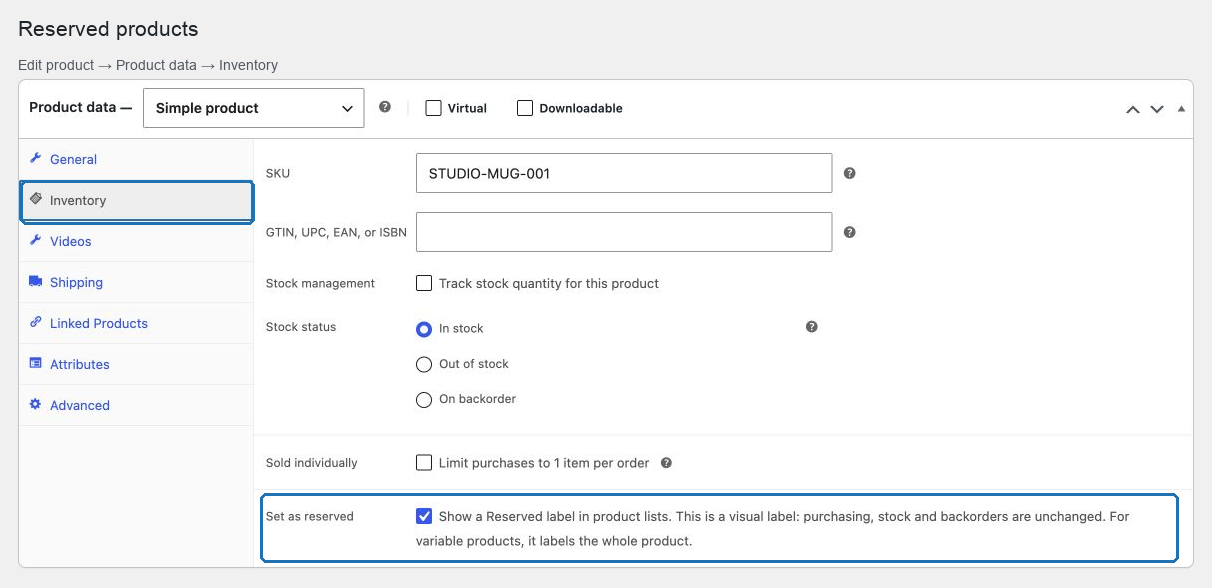
Clear Set as reserved and update the product to remove its label. For a variable product, set the checkbox on the parent product: the label describes the whole product, not an individual variation.
Existing product marks remain available without reopening and saving every product. Quick Edit and other unrelated product saves retain the mark.
Display compatibility
The badge appears in classic WooCommerce product lists that run the standard title-area hooks. This includes related products and product shortcodes when their templates retain those hooks.
POM Theme feed templates display the badge through the {{title}} merge tag's WooCommerce title-area output. Configure a feed card with that tag; a title-only fallback or a custom template that omits the hooks cannot display the badge. The optional detail notice uses the classic WooCommerce product summary.
Product Collection blocks, block product templates and custom headless storefronts do not automatically render these classic hooks. This control does not add a separate block badge or change Store API purchasing rules.
The badge has basic styling that can be overridden by the theme. Existing styling for the historical on-sale class remains applicable. Use .pom-reserved-product to target only reserved badges, and .pom-reserved-product-notice to target the optional detail notice.
Verify and troubleshoot
- Compare one marked and one unmarked product: only the marked one should display the label.
- Confirm that adding the marked product to the cart follows its normal purchasing and stock rules.
- If a badge is absent, check the module activation, the product checkbox and whether the active card uses the supported hooks. With POM Theme, check the assigned feed template and its
{{title}}tag. - If the single-product notice is absent, enable Show on the product page and check that the template runs the classic product summary.
- Clear the page cache after changing labels or marks if the storefront still displays an older page.
To hide all reserved labels, disable Reserved products and save. Product marks and the saved text are retained for reactivation.
Related: Modern tweaks.