
Configure Product Add-Ons for a variable product
Use this tutorial to add one shared configuration to every purchasable variation of a variable product. WooCommerce still purchases the selected variation; the variable parent supplies its Product Add-Ons fields and global assignments.
Prerequisites
- Create the variable product, its attributes, and at least two enabled variations with prices and stock settings.
- Enable Product Add-Ons under Settings → POM Tweaks → E-Commerce → Products.
- Decide whether the fields belong only to this product or should be shared as a global group.
Add product-specific fields
- Go to Products → All Products and edit the variable product, not an individual variation.
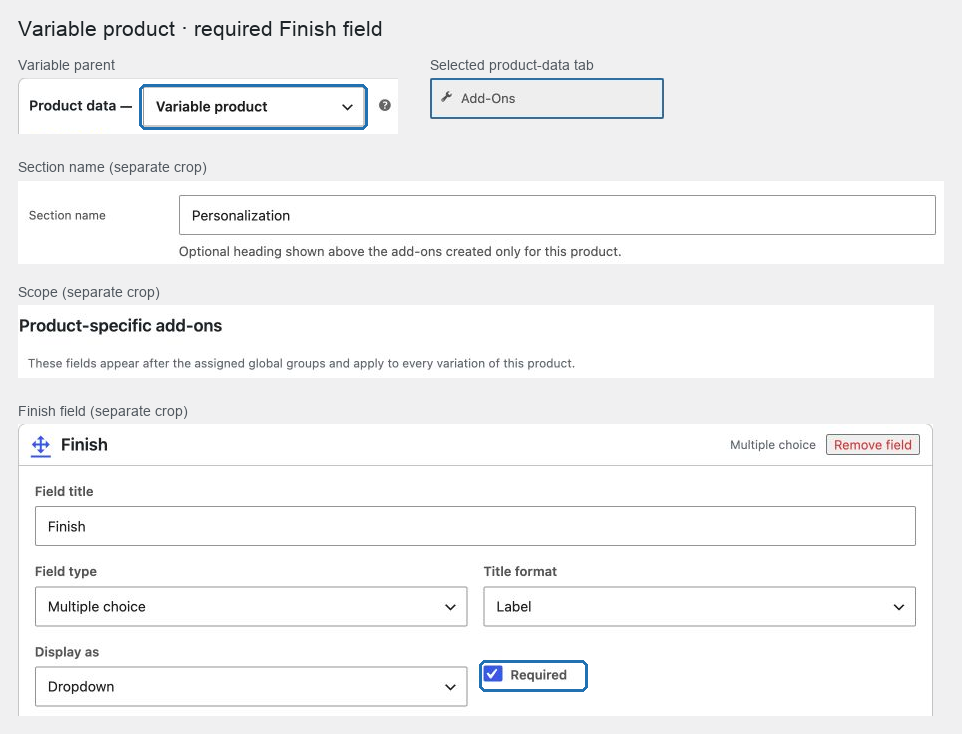
- In Product data, open Add-Ons.
- Optionally enter a Section name such as
Personalization. - Select Add field.
- Enter
Finishunder Field title, choose Multiple choice under Field type, and select Required. - Select Add option for each allowed finish and leave Option source as Local option, or link existing reusable choices.
- Choose the appropriate price and Price type for each option. Use Percentage based only when the surcharge should follow the selected variation's price.
- Update the product once. This saves the Product Add-Ons changes as a draft.
Publish the product-specific draft
- Reopen Product data → Add-Ons after the first update.
- Review the unpublished changes under Publication.
- Select Publish the previously saved draft when the product is updated.
- Optionally enter a Publication reason.
- Select Update.
Changes made after the page was loaded become the next draft; the checkbox publishes the previously saved draft. This prevents unreviewed browser edits from being published accidentally.
Test more than one variation
- Open the product in a private browser window.
- Select the first purchasable variation, choose a finish, and add it to the cart.
- Return to the product, select a second variation with a different base price, and add the same finish.
- Confirm both lines contain one set of Product Add-On values and retain their selected WooCommerce variation.
- If the finish uses Percentage based, confirm each line uses its own variation base price.
- Complete a test order and confirm the variation and accepted add-on appear together on each order line.
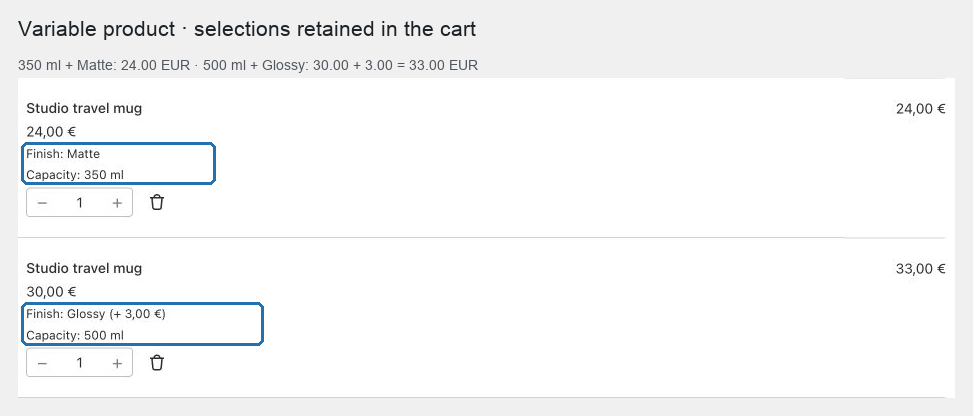
Expected result: every variation uses the parent-owned fields, server validation runs against the selected variation, and no duplicate parent/variation add-on rows are created.
Use a global group instead
Use Products → Product Add-Ons → Groups when several products share the same fields. Under Product assignment, choose the variable parent under Individual products, or target one of its categories, product type, tags, or attributes. Variations inherit the parent assignment and cannot define a separate global-rule override.
Use Explain assignment for a product with a variation and select Explain match before publishing a complex rule. The explanation shows the inherited parent terms and any exclusion that wins.
Important choices and limits
- Product-specific fields apply to every variation and appear after matching global groups.
- The selected variation supplies the authoritative base price, tax state, stock state, and purchasability.
- Flat fee applies once to each cart line; Quantity based applies per product unit; Percentage based uses the selected variation's base unit price and scales with quantity.
- A required add-on never replaces WooCommerce's required variation selection.
- A translated variable product inherits the default-language structure unless its translation creates a complete explicit override under Product data → Add-Ons.
Troubleshooting
- Fields do not appear: confirm the product-specific draft was published and the selected variation is purchasable.
- A group does not apply: assign the variable parent, not a variation, and use Explain match to inspect exclusions.
- Percentage totals are unexpected: verify the selected variation's current base price and any country-zone or Name Your Price integration.
- The product shows duplicate fields: confirm the same field was not created both as a product-specific field and in an assigned global group.
Related: Create groups and reusable choices, Storefront fields and pricing, and Store API and Blocks.