
Add a language selector
POM Translate can expose the same language destinations through three public surfaces:
| Surface | Available formats | Best suited to |
|---|---|---|
| WordPress navigation menu | Dropdown menu, All languages at the same level | A selector integrated into primary or footer navigation |
| Shortcode | List, Links, Dropdown | Content, widgets, builders, and template areas that process shortcodes |
| Floating language switcher | Dropup menu, All languages at the same level | A site-wide selector injected near the end of the page |
All three use the current request to build an equivalent URL for each enabled locale. They preserve the route, supported localized slugs, query string, and trailing-slash style.
Search and filter parameters keep their URL-encoded values when visitors change language. For example, tipo=Piso%2CChalet continues to represent Piso,Chalet in every destination. Encoded separators, spaces, array parameters, and empty values are preserved across selector types and formats.
Configure a first selector
- Open Settings → POM Translate → Language switcher.
- Decide whether Hide current language should apply globally.
- Choose the format and markup for the surface you will use.
- Save the settings.
- Add the navigation item, place the shortcode, or enable floating output.
- Open a public page and switch to every offered locale.
- Repeat on a hierarchical page, a taxonomy archive, and a context with an excluded language.
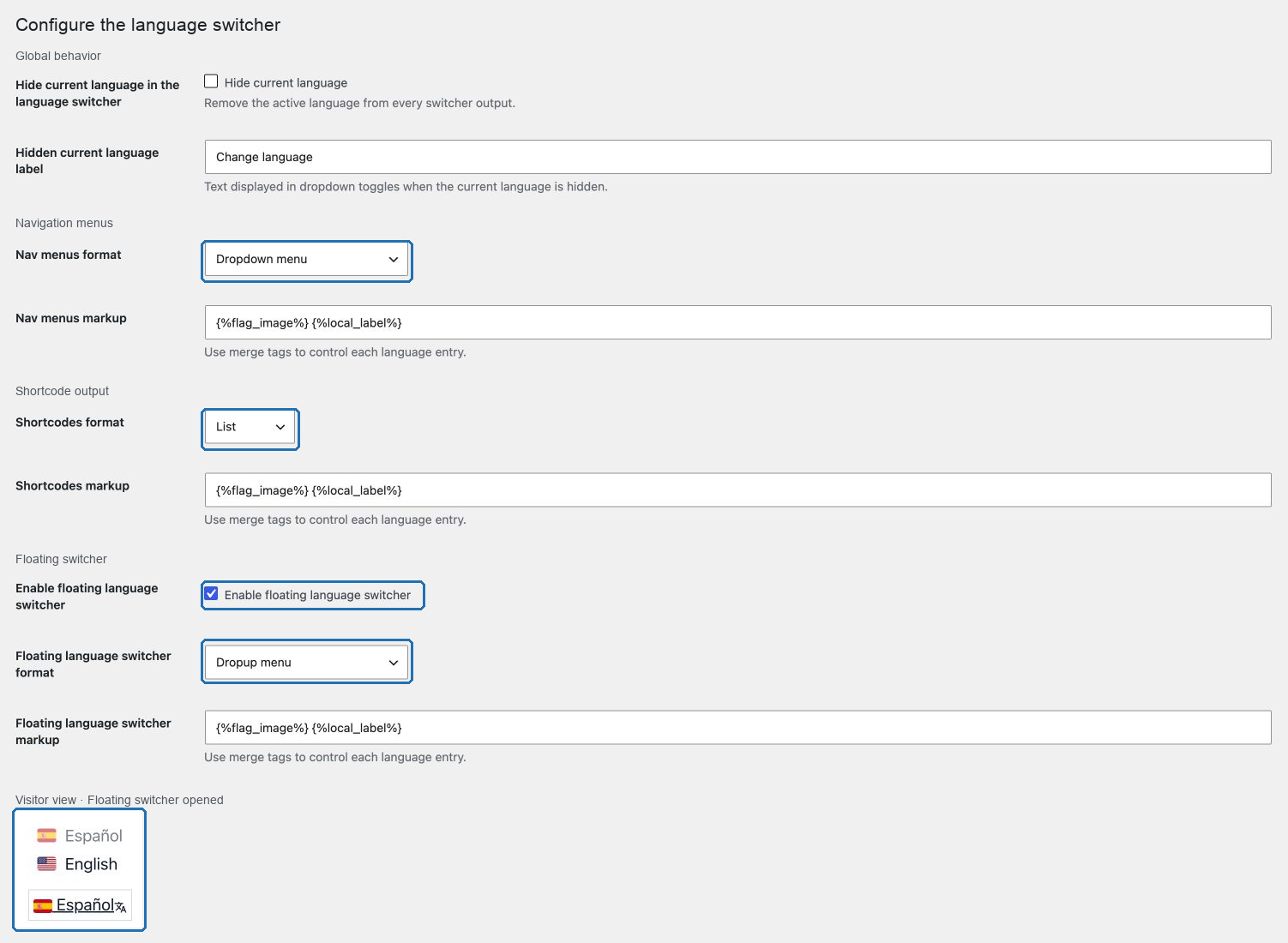
Shared behavior
- Per-locale exclusions remove unavailable destinations from the current selector.
- A surface can omit the base language where that surface exposes the option.
- The global current-language setting can be overridden by the shortcode.
- Labels use a sanitized merge-tag template.
- Text values are escaped before insertion.
- An empty computed label falls back to the language code.
- Selector links include
lang,hreflang, andrel="alternate".
Flags represent a country or region, not a language. Include meaningful text whenever a flag alone could be ambiguous.
Choose a focused guide
| Goal | Guide |
|---|---|
| Decide where the control belongs | Choose the right selector |
| Add it to a WordPress menu | Add a selector to a navigation menu |
| Insert it in content or a builder | Add a selector with a shortcode |
| Review all shortcode parameters | Shortcode reference |
| Enable the site-wide footer output | Configure the floating selector |
| Understand adaptive drop-up behavior | Understand the floating dropdown |
| Remove the active locale from choices | Hide the current language |
| Design the visible label | Choose a selector label |
| Use HTML and merge tags safely | Configure selector markup |
| Handle excluded or incomplete destinations | Handle selector fallbacks |
| Review keyboard and screen-reader behavior | Create an accessible selector |
| Test small screens and constrained headers | Review responsive behavior |
| Diagnose missing languages or wrong URLs | Troubleshoot a selector |