
Items and categories
This is the chapter staff use every day. An item is one thing a guest orders; a category is the section it appears under. Everything else in Fenómenus — prices, allergens, QR codes, PDFs, translations — is built on top of these two objects.
The two screens
Every menu type has the same pair:
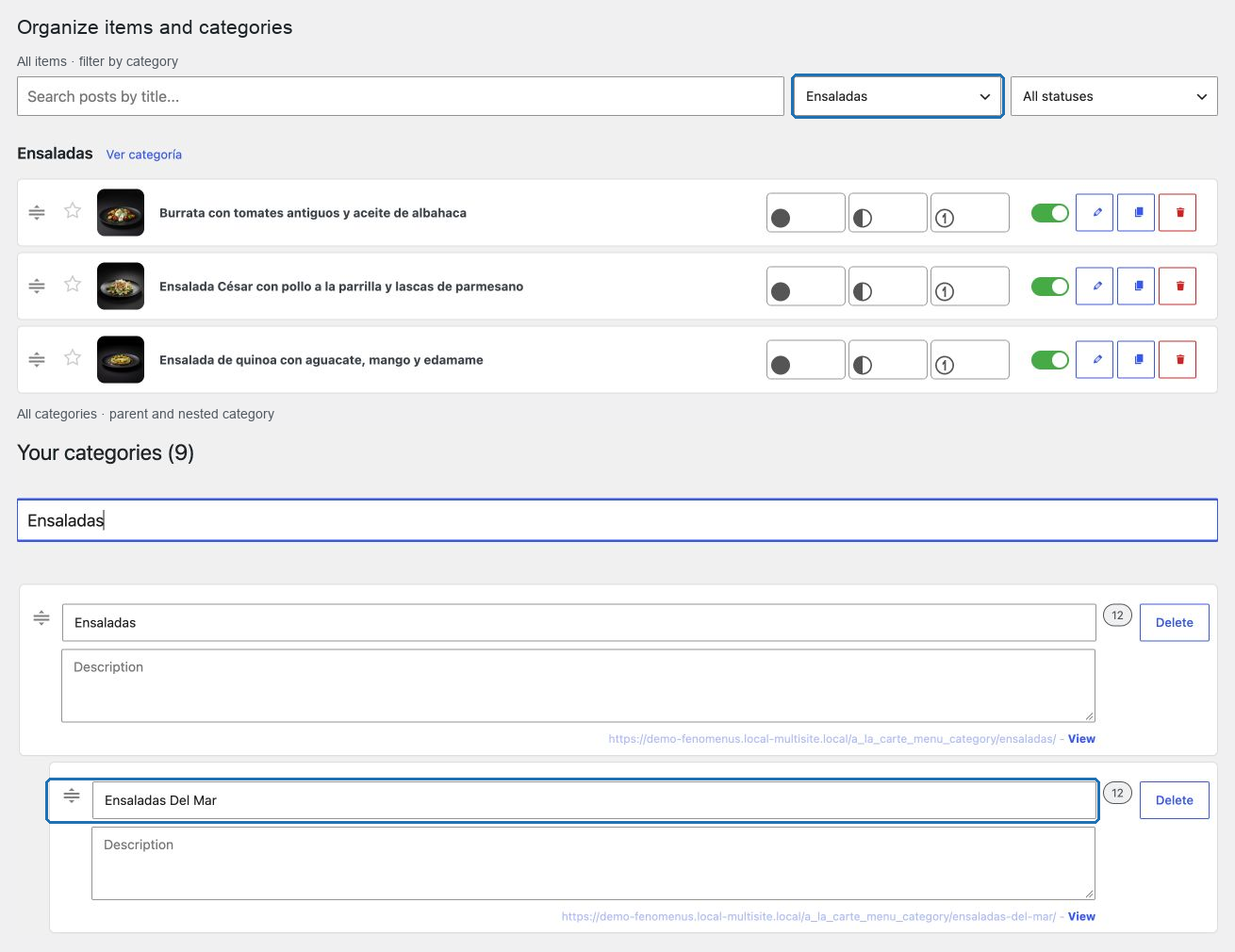
- All items — the working list. Grouped by category, in the order guests read, with search, filters, drag ordering, inline price editing, status switching, featuring, duplication and deletion.
- All categories — the section tree. Drag to reorder, drag sideways to nest one level, rename, add and delete.
The standard WordPress list screens for these content types are not used; opening one redirects to the Fenómenus equivalent.
These screens apply only to Fenómenus menu types and their set-menu dishes. Other content types provided by your theme or another plugin keep their own list, category, and editing screens.
Items
| Task | Article |
|---|---|
| Add a dish, drink or wine | Create an item |
| Change its content | Edit an item |
| Reuse one as the basis for another | Duplicate an item |
| Show or hide it from guests | Publish, draft and hide |
| Change many statuses at once | Change statuses across a menu |
| Mark house specialities | Featured items |
| Set the order guests read | Reorder items |
| Move a dish to another section | Move items between categories |
| Fix items guests cannot see | Uncategorized items |
| Remove one for good | Delete an item |
| Find something in a long menu | Search and filter |
Categories
| Task | Article |
|---|---|
| Build the sections of a menu | Create categories |
| Set the order and the nesting | Reorder categories |
| Remove a section without losing dishes | Delete categories safely |
Four rules that explain most behavior
A published item with no category is not shown to guests. It waits in the Uncategorized Items panel until you assign one.
Publishing an item without a category assigns one automatically. The first available category of that menu type is used, or one named after the menu type is created if none exist. Wine list items are excluded.
Deleting an item is permanent. There is no trash and no restore. Use Draft for anything you might want back.
Item order is saved instantly; category order is not. The category screen stages your changes and applies them when you select Save changes.
The daily rhythm
Most shifts only need three of these:
- A dish runs out → set it to Draft.
- A price changes → edit it inline on All items.
- The dish is back → set it to Published.
Everything else — creating, reordering, restructuring — is menu-change work, better done outside service and finished with a signed-out check on a phone.