
Allergens and dietary information
Fenómenus stores the allergen information you enter, shows it beside each dish, and lets guests filter a menu by what they must avoid. What it cannot do is know what is in your food. That division runs through this whole chapter.
How the pieces fit together
- An allergen library defines the allergens this restaurant uses — their names, descriptions and icons.
- Each menu type is switched on or off for allergen information.
- Each item carries the allergens that apply to it.
- The public menu shows those allergens as icons and lets guests filter by them.
Change the library and every item using an allergen follows. Change an item and only that item changes.
In this chapter
| Task | Article |
|---|---|
| Define which allergens this restaurant uses | Manage the allergen library |
| Mark the allergens on a dish | Assign allergens to items |
| Choose the icons guests see | Allergen icons |
| Remove an allergen from a dish or from the library | Remove allergens |
| Set up a review that keeps the data honest | Allergen review workflow |
| Understand the guest-facing filter | Allergen filters on the public menu |
| Explain why a guest's selection persists | Remembered filter preferences |
| Write the wording that must accompany the data | The allergen disclaimer |
The seventeen allergens you start with
A new site is seeded with a library covering the common declarable allergens and a few intolerances that restaurants are regularly asked about:
alcohol, celery, crustaceans, dairy, eggs, fish, fructose, gluten, lupin, molluscs, mustard, olive, peanuts, sesame, soy, sulphites and tree nuts.
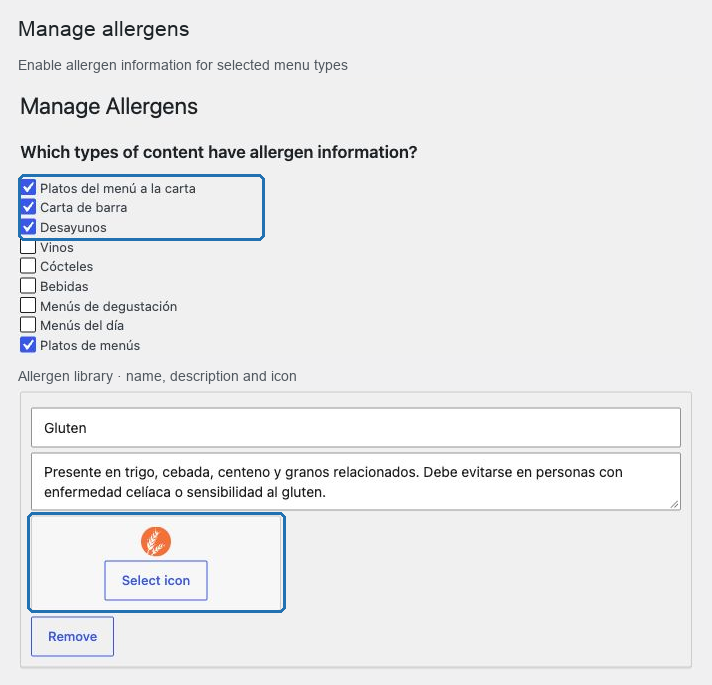
Each arrives with a short description and an icon. Rename them, remove the ones you never need, and add anything specific to your kitchen.
Which menus carry allergen information
Allergen support is per menu type, chosen under Settings → Restaurant settings → Content settings → Allergens. Food menu types are enabled during setup; drinks menus are not, and are worth enabling when the list includes beers, cream liqueurs, or anything with sulphites.
A menu type that is not ticked has no allergen panel on its items and no filter on its archive.
Two behaviors worth knowing before you start
Allergens are shared across translations. Saving an item applies its allergens to every language, so the information cannot drift between the Spanish and the English menu.
The filter hides rather than reveals. A guest selects what they must avoid, and the menu shows what is left. That is the opposite of a search, and it is what guests expect from an allergen control.
The boundary
Fenómenus publishes what you enter. It does not read recipes, infer allergens from a dish name, verify a supplier's specification, or assess compliance with the food-information rules that apply to your business. Accuracy, review and legal responsibility remain with the restaurant.
Read The allergen disclaimer before publishing allergen data for the first time.