
Design and display
This chapter covers what a guest sees: the layout a menu is published with, the navigation around it, the colors and icons, and how all of it behaves on a phone.
The layouts
Item menus choose one of five. Tasting and set menus have two designs of their own.
| Layout | Best for | Article |
|---|---|---|
| Vertical | A full-screen, photo-led feed | Vertical |
| Price list | Long menus, incomplete photography | Price list |
| Horizontal carousel | Curated sections with strong images | Horizontal carousel |
| Masonry | Photo-rich grids | Masonry |
| Swipe | A playful, one-dish-at-a-time experience | Swipe |
| Menu design 1 / 2 | Tasting menus | Tasting menu design |
| Menu design 1 / 2 | Set menus | Set menu design |
Start with Choose a layout, which is the decision that constrains everything else.
Around the content
| Element | What it does | Article |
|---|---|---|
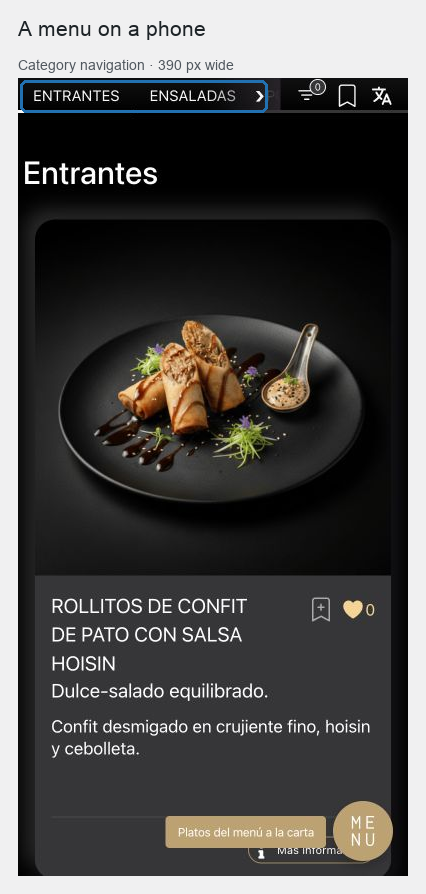
| Category navigation | Moves guests between sections, and carries the utility toggles | Category navigation |
| Contact dock | The floating control that moves guests between menus | Contact dock |
| Favorites | Lets a guest collect dishes on their own device | Favorites |
Presentation
| Topic | Article |
|---|---|
| The palette and where each color is used | Colors and palettes |
| Menu icons, dock icons and their defaults | Icons |
| Photography, background images and what to expect | Images |
| Checking the result where guests actually read it | Responsive review |
Where design settings live
Two places, and they do different jobs:
- The setup assistant sets the palette and the initial layout per menu type. Re-running it overwrites those choices.
- Settings → Restaurant settings → Content settings → Content settings holds everything you tune afterwards: background image, icon and plural label per menu type, contact dock links, labels and colors, category navigation colors, and the utility toggles.
A menu type's layout is chosen when the type is enabled, under Content settings → Content types.
The one rule of this chapter
Design decisions are made on a phone. Every menu in Fenómenus is read at a table, in that room's lighting, on a screen held in one hand. A layout that is impressive on a desktop and unreadable at a table is the wrong layout, whatever it looks like in a review meeting.
Each layout article ends with what to check on a phone. Responsive review collects the whole checklist.