
QR codes
The QR generator turns any destination on your site into a code guests can scan: the home page, a menu, a section of a menu, or a custom address. Codes are produced per language and downloaded as PNG or SVG.
Where it lives
QR generator, a top-level entry in the sidebar. It appears when the tool is enabled under Settings → Restaurant settings → Enabled tools → QR codes generator.
In this chapter
| Task | Article |
|---|---|
| A code for the front page | Create a QR code for the home page |
| A code for a whole menu | Create a QR code for a menu type |
| A code for one section | Create a QR code for a category |
| A code for a single dish | Create a QR code for an item |
| A code for anything else | Create a QR code for a custom URL |
| Which file format to download | Download PNG · Download SVG |
| Codes for a multilingual site | Multilingual QR codes |
| Getting from a file to a table | Print and test a QR code |
| When a code misbehaves | QR troubleshooting |
How the screen works
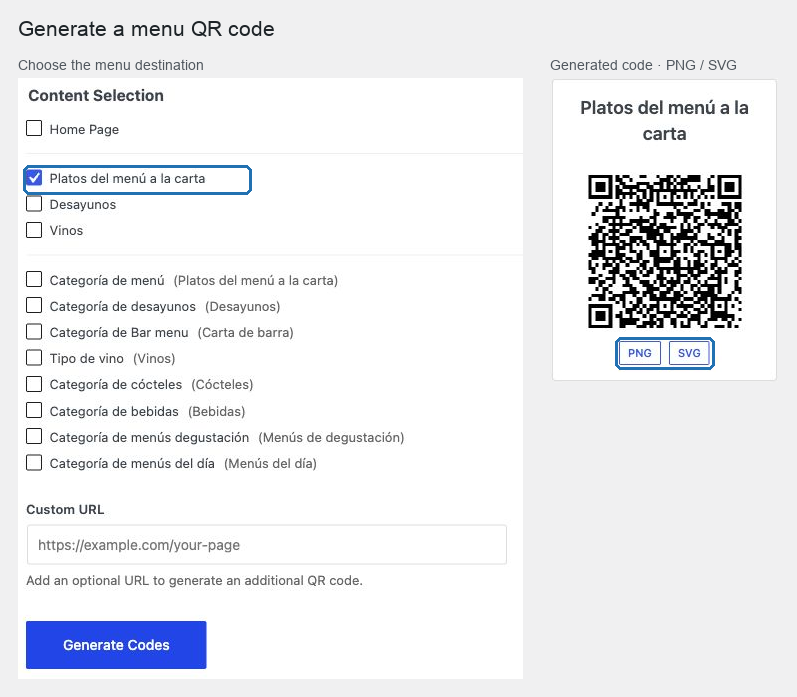
- Tick the destinations you want. Home Page is ticked by default.
- Optionally add one address in Custom URL.
- Select Generate Codes.
- Download each result as PNG or SVG.
Results are grouped, and on a multilingual site there is one group per language.
What the list offers
- Home Page — always available.
- Menu archives — one checkbox per menu type that publishes an archive.
- Category archives — one checkbox per menu category, with the menu it belongs to shown beside it.
- Custom URL — one free-form address per generation.
A menu type whose archive is not published does not appear in the list. Its categories still do, and on many sites a category archive is the public menu.
The one thing to understand about QR codes
A QR code contains an address, not content.
- Changing a price, a dish or a photo never requires a reprint.
- Changing an address — renaming a category, disabling a menu type, moving domain — breaks every printed code that pointed there.
So the whole discipline of this chapter is: verify the destination before you generate, and point printed codes at destinations that will still exist next season.
The safe sequence
- Open the destination in a private browser window and copy its address.
- Generate the code for it.
- Download the SVG for print.
- Scan the file on screen and confirm it opens that exact address.
- Print one proof at final size and scan it at the table.
- Only then order the run.