
WooCommerce integration
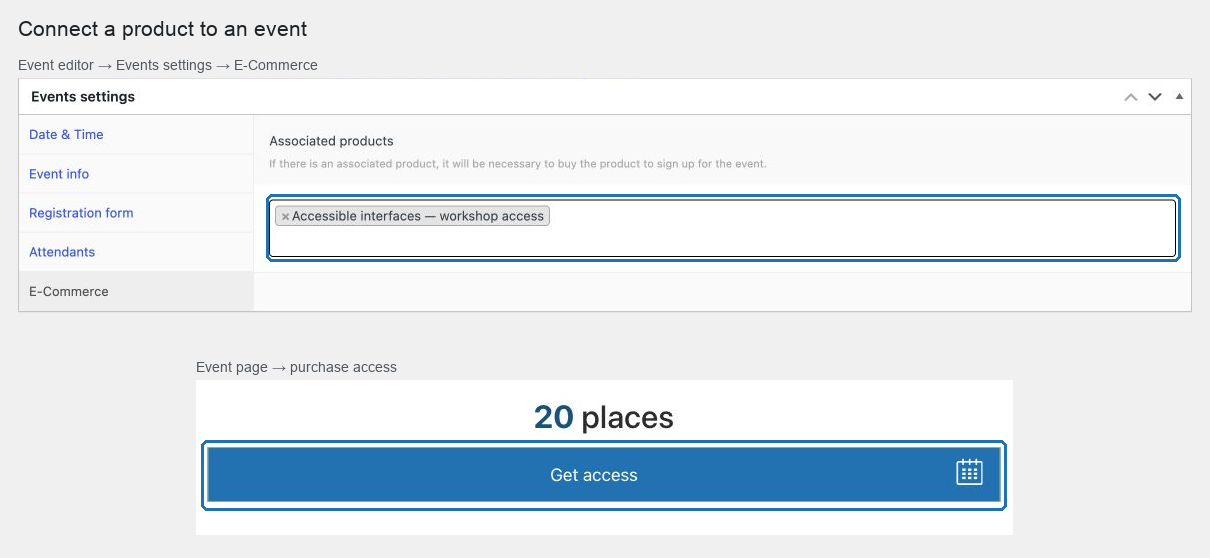
When WooCommerce is active, an event can require a purchase. The registration button becomes Get access, the visitor buys a product, and the order enrolls them in the event automatically.
In this chapter
| Task | Article |
|---|---|
| Check what must be in place | Requirements |
| Link a product to an event | Connect products to an event |
| Understand the visitor's path | Sell event access |
| Know what the cart carries | Event data in the cart |
| Know what the order carries | Event data in orders |
| Understand when enrollment happens | Automatic enrollment after purchase |
| Understand the thank-you page | Thank-you page behavior |
| Offer several ticket types | Multiple products and one event |
| Handle refunds and cancellations | Refunds, cancellations and attendee status |
| Fix something that did not work | Troubleshooting |
How the flow works
- The event has one or more Associated products.
- The event page shows Get access instead of the registration button.
- Selecting it puts the product in the cart, carrying the event's identity.
- The visitor is sent to checkout.
- The order records which event it is for.
- On the thank-you page, the buyer is enrolled in the event.
- They appear in the event's attendee list, respecting the same capacity and waiting-list rules.
The one behavior to internalise
Enrollment happens when the order's thank-you page is rendered. A buyer who completes payment but never reaches that page is not enrolled automatically.
Everything in Automatic enrollment after purchase follows from that, including the routine of checking paid orders against the attendee list.
What replaces what
| Without a product | With an associated product |
|---|---|
| Registration button with your label | Get access |
| A modal form with name and email | The WooCommerce checkout |
| Attendee created on submit | Attendee created after the order |
| Comments from the form | Comments from the order's customer notes |
| Telephone from the form | Telephone from the order's billing phone |
The event's own form fields — last name, comments, country — are not used in this path. The data comes from the order.
Decide before you sell
- Who is enrolled? The order's customer account. Consider whether guest checkout is appropriate for your events.
- Which product? The button uses one product; several associated products are a catalogue, not a chooser. See Multiple products and one event.
- What about capacity? It still applies, and a buyer who arrives after the event fills is placed on the waiting list — after paying.
That last point deserves a decision before launch. See Refunds, cancellations and attendee status.
Start with Requirements.