
Registration forms
POM Events can collect registrations directly on the event page: a visitor selects the button, fills in a short form in a modal, and appears in the event's attendee list.
In this chapter
| Task | Article |
|---|---|
| Decide whether the site uses registration at all | Enable or disable registration |
| Limit how many people can register | Registration capacity |
| Understand the always-required fields | Required registration data |
| Ask for a last name | The last name field |
| Ask for a telephone | The telephone field |
| Let people write a message | The comments field |
| Ask for a country | The country field |
| Change the button wording | Custom button labels |
| Show consent text and a privacy link | Privacy and consent copy |
| Show how many places are left | Remaining places |
| Word the waiting-list state | The waiting list message |
| Word the finished state | When registration is closed |
| Understand the accounts that get created | Registration and user accounts |
| Recognise the messages visitors see | Registration errors and messages |
How a registration works
- The visitor opens the event page and selects the registration button.
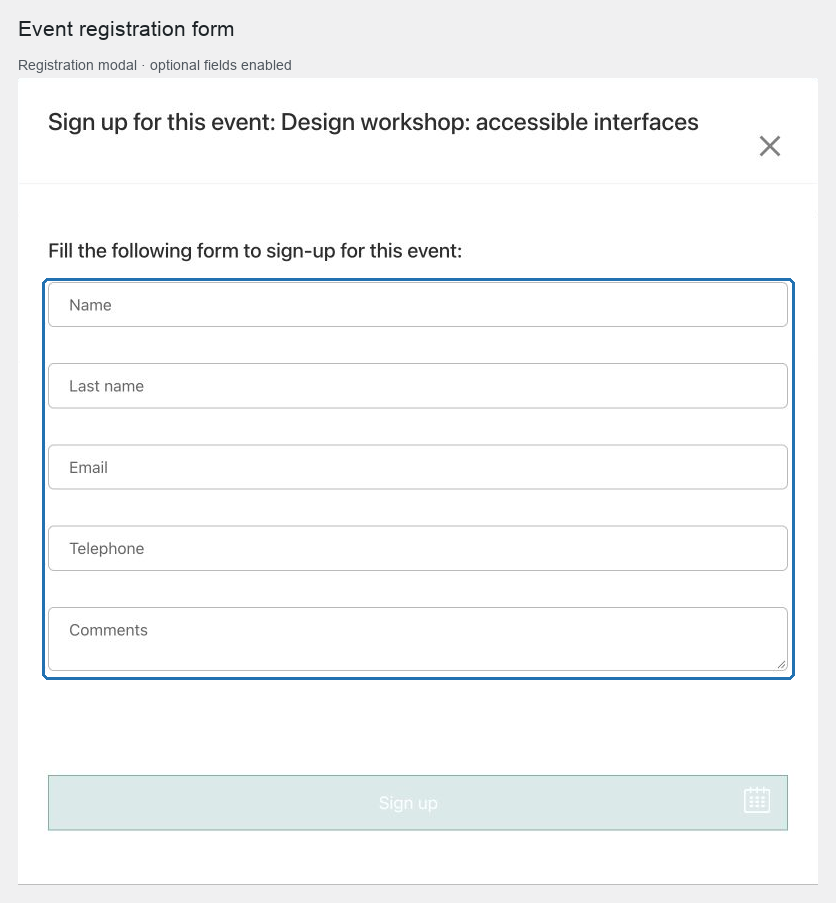
- A modal opens, headed Sign up for this event, with the form.
- Name and Email are required; the optional fields are the ones enabled for that event.
- If a privacy policy URL is configured, a consent checkbox and the clause text are shown.
- On submit, the registration is stored on the event and the visitor is told the result.
- If the event is already full, the visitor is placed on the waiting list and told so.
Three things to know before enabling it
Registrations create WordPress users. An email address that is not already a user of the site gets an account created for it, using the email as the login. That is how attendees are identified. See Registration and user accounts.
One email, one registration per event. A second attempt with the same address is refused with a clear message.
No emails are sent. POM Events does not send a confirmation to the attendee or a notification to the organizer. Plan for that before you publish — see Emails and confirmation expectations.
Where the settings live
| Setting | Where |
|---|---|
| Whether registration exists at all | Settings → POM Events → General |
| The privacy link and the clause text | Settings → POM Events → Single event |
| Optional fields, button labels | The event, Registration form tab |
| Capacity, remaining places, hiding the button | The event, Attendants tab |
Site-wide behavior is not fixed on an event, and per-event behavior is not fixed in the settings.
When registration is not the right tool
- Paid access — use WooCommerce; the button becomes a purchase. See WooCommerce.
- Complex forms — the form is deliberately short. For a long questionnaire, disable the button and link an external form as an additional link.
- Ticketing with seats or passes — POM Events issues no tickets.
Start with Enable or disable registration.