
Usar la visibilidad por dispositivo
El ajuste Device visibility controla si una fila, columna o componente compatible se muestra en cada uno de los cuatro rangos del área de visualización. De forma predeterminada, los cuatro rangos están activados.
Los cuatro rangos
| Ajuste | Ancho del área de visualización |
|---|---|
| Large / Desktop | 992px y más ancho |
| Medium / Tablet Landscape | De 768px a menos de 992px |
| Small / Tablet Portrait | De 576px a menos de 768px |
| Extra small / Mobile | Menos de 576px |
Las casillas de verificación representan dónde el componente permanece visible. Desmarca un rango para ocultar la salida renderizada allí.
En Gutenberg, Advanced → Device visibility utiliza botones con iconos de dispositivo. Un icono nítido marca un rango visible; un icono atenuado marca un rango oculto. La tableta horizontal representa Tablet Landscape y la tableta vertical representa Tablet Portrait. Usa la etiqueta de cada botón y el ancho que se muestra debajo para identificar el rango.
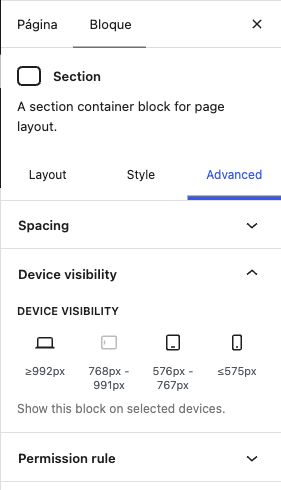
Cambiar la visibilidad
- Edita la fila, columna o componente.
- Abre su grupo Visibility .
- Busca Device visibility.
- Deja seleccionado cada rango donde el contenido debería aparecer.
- Guarda el diálogo y actualiza la entrada.
- Prueba un ancho dentro de cada rango afectado.
Para los bloques Section, Row y Column, usa los botones de dispositivo junto a los controles responsivos para cambiar el ancho del lienzo de Gutenberg. El dispositivo activo se comparte entre las vistas previas de ancho, desplazamiento, espaciado, borde, fondo y visibilidad, así que revisa todos los ajustes de ese rango antes de pasar al siguiente. El contenido oculto en el rango activo permanece seleccionable en el editor y se marca como oculto; no se elimina del lienzo de edición.
El tema aplica la visibilidad seleccionada a la salida frontal del componente, incluido el contenido guardado del maquetador cuyo callback de componente original no proporcionaba su propio manejo de la visibilidad.
Icon Box y Gap exponen los mismos cuatro controles de dispositivo independientes. Para Icon Box, la visibilidad se aplica al icono y a todo su texto secundario a la vez.
Para el CSS personalizado compatible, el editor de bloques y Page Builder usan las mismas clases independientes: web-hide-on-lg, web-hide-on-md, web-hide-on-sm, y web-hide-on-xs.
Comprobar fondos alternativos
Una imagen de fondo para móvil sustituye a la imagen de escritorio por debajo de 992px, incluidos ambos rangos de tableta. Sin una alternativa, la imagen de escritorio permanece disponible en todos los anchos. Gutenberg muestra la misma elección en la vista previa cuando cambias de rango de dispositivo.
Para los fondos divididos de Section, una división izquierda/derecha se aplica en Desktop. Una división arriba/abajo en pantallas más pequeñas usa el relleno superior/inferior correspondiente como su altura. Define suficiente relleno para el área de imagen prevista y luego inspecciona los tres rangos más pequeños.
Usa Tablet Landscape en el menú de vista previa para el cuarto rango responsivo. Very Large (1800px) es una vista de escritorio escalada y editable; Fit Page (bird's-eye view) es una vista general de solo lectura, no otro punto de ruptura guardado. Existe exactamente una opción de vista previa activa a la vez.
Úsalo para la presentación, no para el significado
Los usos apropiados incluyen:
- ocultar un tratamiento de fondo decorativo en una pantalla estrecha;
- eliminar un elemento visual secundario que repite información ya presente;
- seleccionar uno de dos diseños equivalentes cuando ambos no pueden adaptarse con claridad.
No ocultes la única navegación, el aviso legal, la instrucción de formulario, el encabezado o la llamada a la acción. Si existen dos versiones equivalentes, asegúrate de que solo la versión prevista quede expuesta en cada rango y de que ambas sigan manteniéndose.
Diagnosticar un resultado inesperado
Si un componente desaparece:
- inspecciona sus propios ajustes de visibilidad;
- inspecciona la columna y la fila que lo contienen;
- prueba el ancho exacto del área de visualización en lugar de fiarte del nombre de un dispositivo;
- actualiza la entrada y recarga la página pública.
Un elemento secundario visible no puede anular a un elemento principal oculto.